
What families see
A walkthrough of the parent journey on your branded storefront, picking a storybook, adding their child, the personalized preview, ordering, and the reader, so you know what you are building toward.
Before you build your first storybook, it helps to see the other side. This page walks you through exactly what a family experiences on your storefront, from their first visit, to adding their own child, to reading the finished book. Every choice you make in the studio shapes this journey, so it's worth a look.
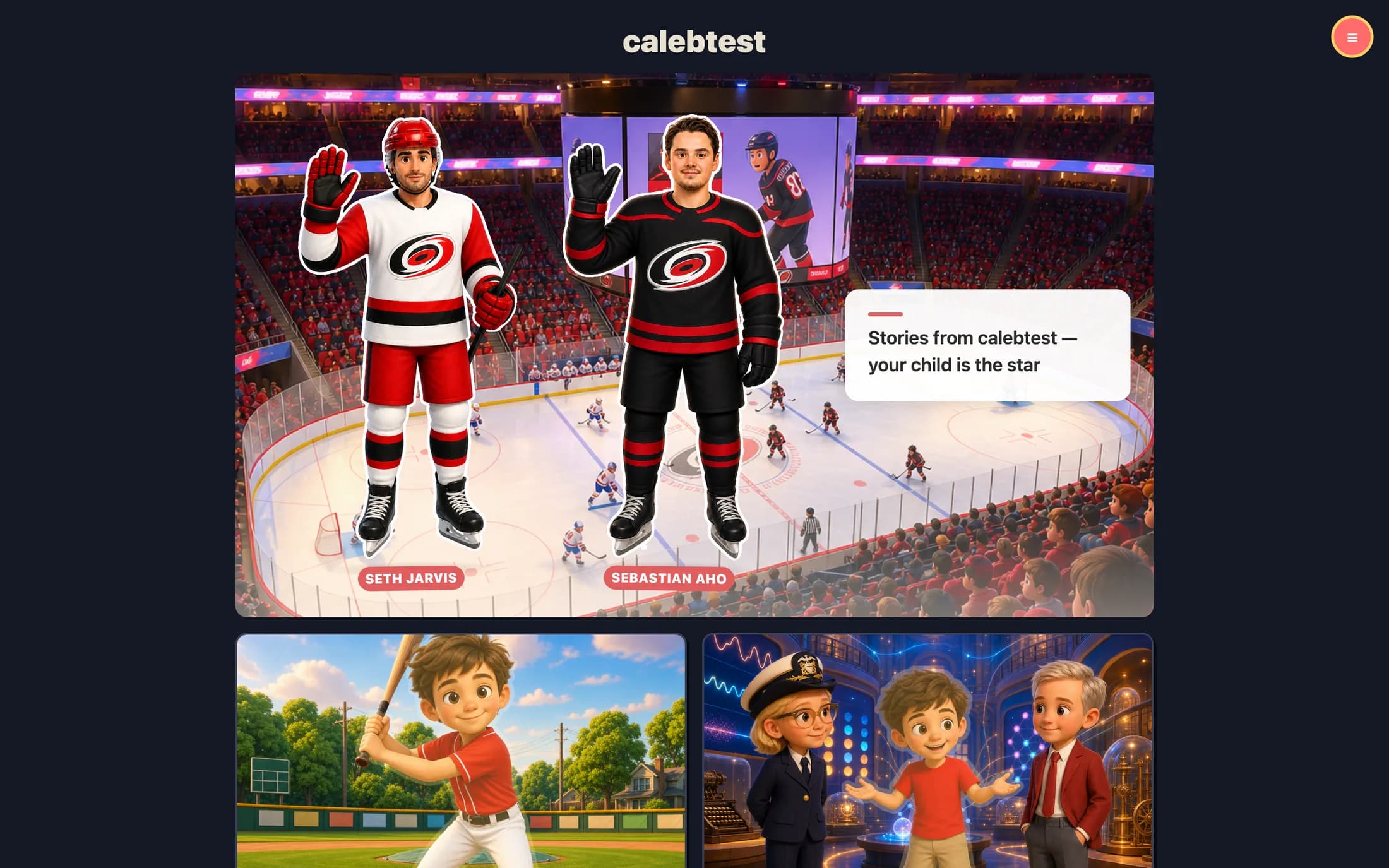
Your branded storefront
Each family visits your organization's own web page at your storefront address, for example, your-org.prestostories.com. It's fully branded to you: your name across the top, your welcome line, and big cutout illustrations of the story cast, each with a name pill. On a family's very first visit, a short title card plays, CUSTOM STORIES, then "brought to you by" your organization's name, and the page assembles itself. After that first time, it skips straight to the page.
There's no busy app menu here. The only control is a round avatar button in the top-right corner. A family who hasn't signed in sees Sign in and Create account there; once they're signed in, it holds 📚 My bookshelf, 👤 Account, and Sign out. A small Made with PrestoStories note sits at the bottom.
Picking a storybook
Each published storybook shows up as a card: the cover illustration on top, a small colored theme pill, the title, an age and length line, a short description, and a gold CUSTOMIZE NOW → button. When a family taps a card, they land on the storybook's detail page. There they can flip through the whole book with the Read the full story button, every cover and page, shown with a stand-in child, so they can decide they love it before starting.
That sample uses the stand-in child, the same placeholder you confirm the art style for in the studio. Families never keep it. It's there so they can preview the story, then swap in their own child.
How it works card walks a new family through the four steps.Adding their child
This is the heart of the family experience, and the reason your storybooks feel personal. Each family adds their own child once, then that child can star in any story on your storefront.
- The family taps
+ ADD NEW CHARACTER(orAdd my childon a first visit) and lands on theNew Characterscreen. - They add a photo in the
ADD PHOTOframe, type aCharacter name, and can describe the child's appearance and personality. - They set looks, boy or girl, an age, and hair, eye, and skin-tone swatches.
- They tap
Add Character, and the child is saved and ready to star.
When a family adds a photo, a quick quality check runs first, you'll see Checking the photo…, and a photo that won't work (a covered face, a blurry shot, more than one person) is turned away with a clear reason before anything is saved. That check is what keeps the illustrations looking like the real child.
The personalized preview
Once a child is chosen, the family taps Create Story! and the storybook is personalized just for them, their child's name, traits, and likeness woven into the pages you designed. A full-screen scene plays while this happens: first Setting the scene for {child}…, then, the moment the child's illustrated portrait lands, Drawing {child}'s story…, with a progress bar along the bottom.
What renders here is the free preview, the cover plus the first two story pages. That's the taste that draws a family in. The rest of the book stays wrapped until they order.
The preview and ordering
When the preview is ready, the family sees a small carousel of those first pages, a "starring" panel with their child's name and portrait, and two price cards, Softcover and Hardcover, with hardcover marked MOST POPULAR. A family orders a printed book to unlock the full digital story. Everything past the second page stays unrendered until they do.
Checkout is a simple shipping form and a secure payment page. The finished book is a square printed hardcover or softcover, a cover and ten illustrated story pages. Ordering kicks off the full render, which the family can watch fill in page by page, and every book passes a human design review before it prints. The printed copy ships once that review is done.
The finished book and the reader
After a family orders, the full book renders and every page becomes readable. In the reader, pages swipe across, with page dots along the bottom showing progress and a Cover / Page X of Y label. While a purchased book is in design review, a friendly banner explains that the team is making sure everything looks perfect before printing. Families can also track their printed order through its stages, from Under Review all the way to Shipped, with live updates and a tracking number once it's on its way.
That's the whole journey your families take, and every part of it flows from the storybook you design in the studio. When you're reviewing your Story world, your Outline, and your Page art, this is the experience you're building toward.
Still stuck? Email support@prestostories.com and we'll help.