
5. Approve the Cast Art
Set up and confirm the reference art for your storybook's cast, reuse catalog elements for free, render the stand-in child, request changes to any sheet, and clear the three approve gates. You're confirming the art style, not the child.
The Cast Art step is where you confirm how your storybook's cast will look. "Cast" means the recurring people, places, and things in your story, a character, a scene, an object. Each one gets a reference sheet: a single rendered picture the studio keeps on hand so that person or place looks the same on every page. Your job here is simple: look at each sheet, make sure the art style is right, and mark it good. You're approving the look, not any one child.
Most of the art is already waiting for you
Your cast art starts rendering quietly in the background the moment you approve the Story World, long before you reach this step. By the time you finish the Outline and the Page Text, most sheets are already done or nearly done. So the Cast Art step is usually a review, not a wait.
Each sheet is rendered at high quality, which takes about two to three minutes apiece. They render at the same time, so the whole cast doesn't take long, and it's mostly finished by the time you look.
The setup grid: what gets art
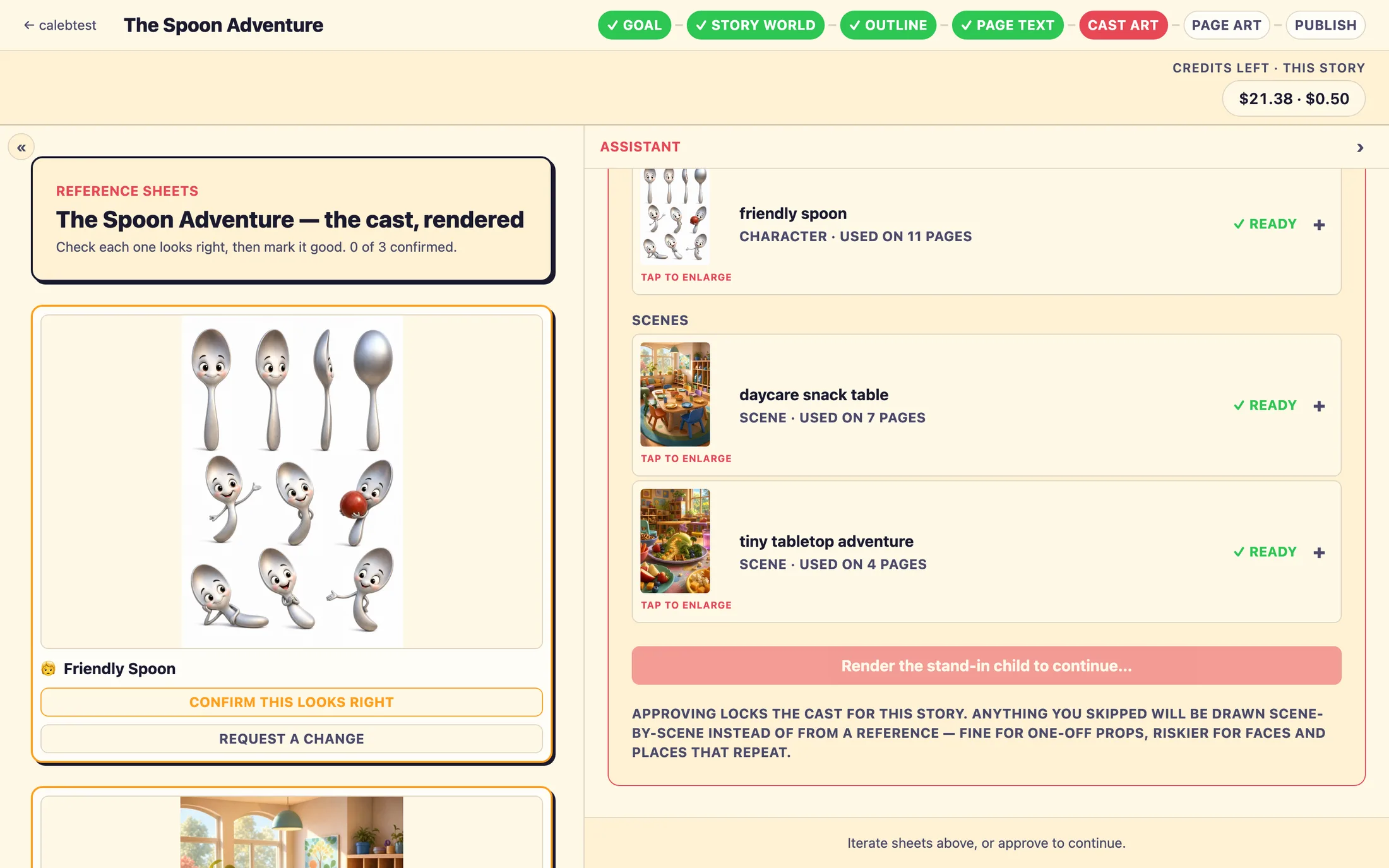
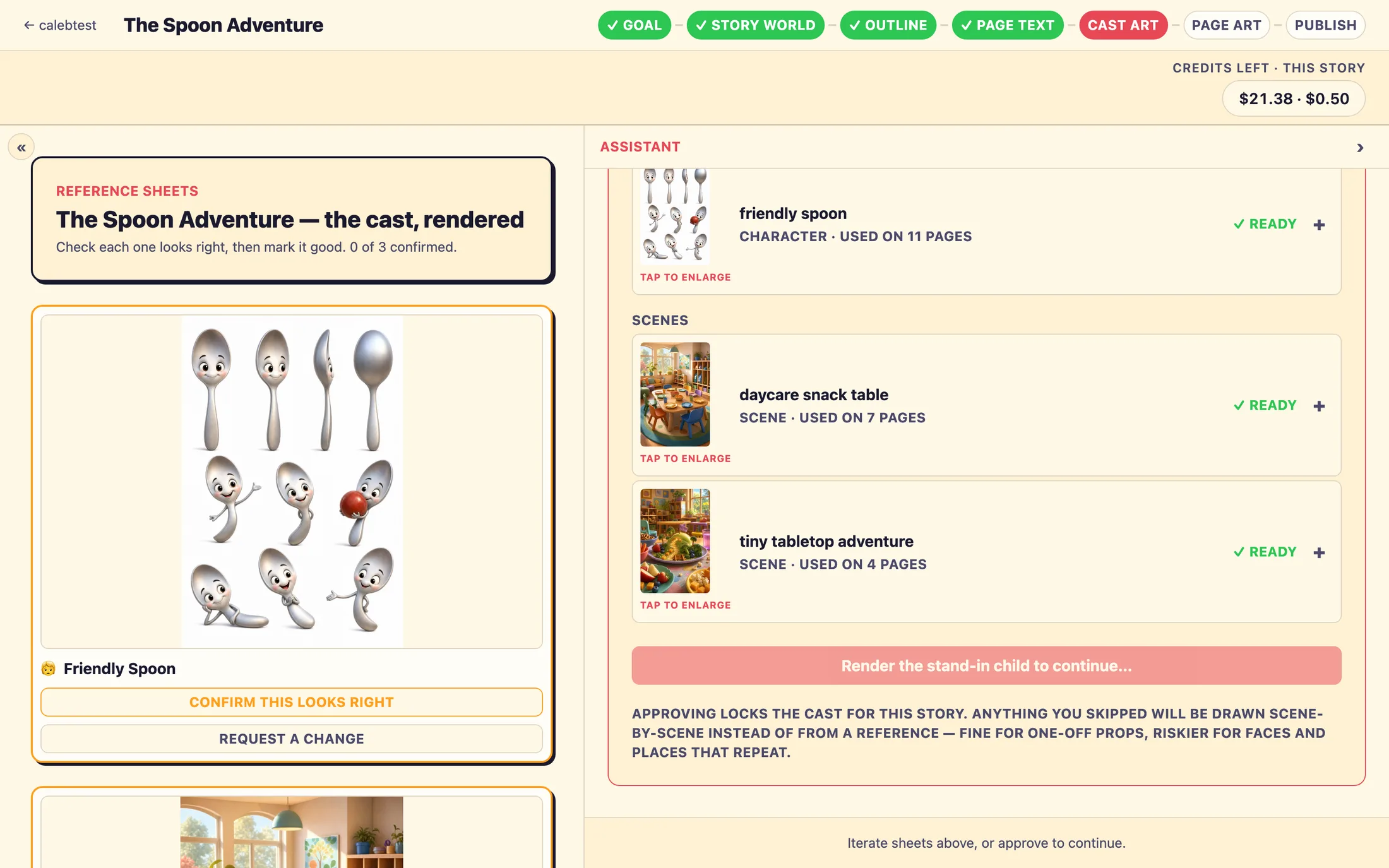
On the right, you'll see a card headed STEP 5 · REFERENCE SHEETS with a small X / Y set up counter that tracks your progress. Your cast is grouped into Characters, Scenes, and Objects. Each row shows a thumbnail, the element's name, a note like "character · used on 3 pages", and a status chip telling you where it stands.
generating…, the sheet is rendering right now. Nothing for you to do but wait.✓ ready, the sheet is done and waiting for your review on the canvas.📚 from your catalog, reused free, this element was pulled from your Element Catalog. Reusing it costs no story credits and it arrives pre-confirmed.📷 from chat, a reference photo you shared earlier is the source for this sheet.set up, this one hasn't been rendered yet; open the row to start it.
Catalog reuse is free
Anything you've already added to your Element Catalog, a character or scene your organization approved before, can be reused here at no cost. When that happens, you'll see a green notice like "Reused 2 from your catalog, no new renders needed." Those sheets come in already confirmed, because your organization signed off on that art when it entered the catalog. You don't need to review them again.
Below the rows sits one batch button that adapts to your situation, for example Set up 2 from your catalog, no new renders or Generate 4 new · reuse 2 from your catalog. Use it to set up everything that's left in one tap. It skips any element no page uses; those you can still set up one at a time from their own row.
The stand-in child
Near the top of the setup grid is a banner titled The stand-in child. This is the placeholder that stands in for every family's own child. It's system-managed, you can't edit its look or upload a photo for it. You can only render it. If it hasn't been rendered yet, tap Render placeholder and give it a minute.
Confirming each sheet on the canvas
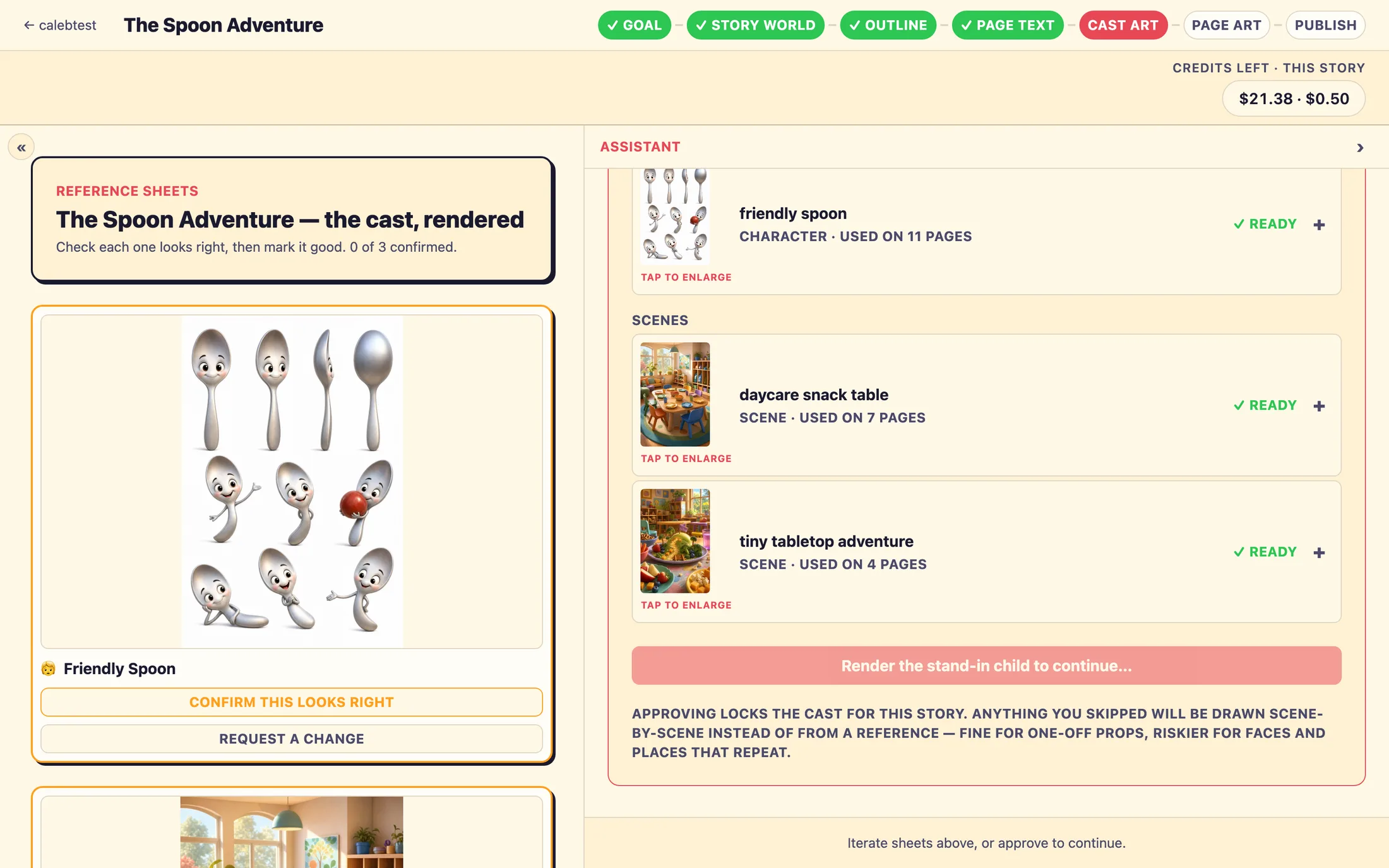
The review itself happens on the left canvas, in a grid headed REFERENCE SHEETS. Its subtitle keeps a running count, "Check each one looks right, then mark it good. 3 of 8 confirmed.", and turns green to "✓ All 8 reviewed, you can approve the sheets." once you've cleared them all.
The stand-in child comes first, marked with a READER pill and this reminder: "Stand-in only, every family's real child takes this spot in their book. Confirm the art style, not the child." Take it to heart, you're checking the world and the style, not the placeholder's face.
- Tap any sheet image to open it large in a lightbox and look closely.
- If it looks right, tap
Confirm this looks right. Its orange border turns green and the button flips to✓ Looks good. - Work through every sheet until the subtitle turns green.
- A sheet still rendering shows a
rendering…spinner, just wait for it to finish, then confirm it.
Requesting a change
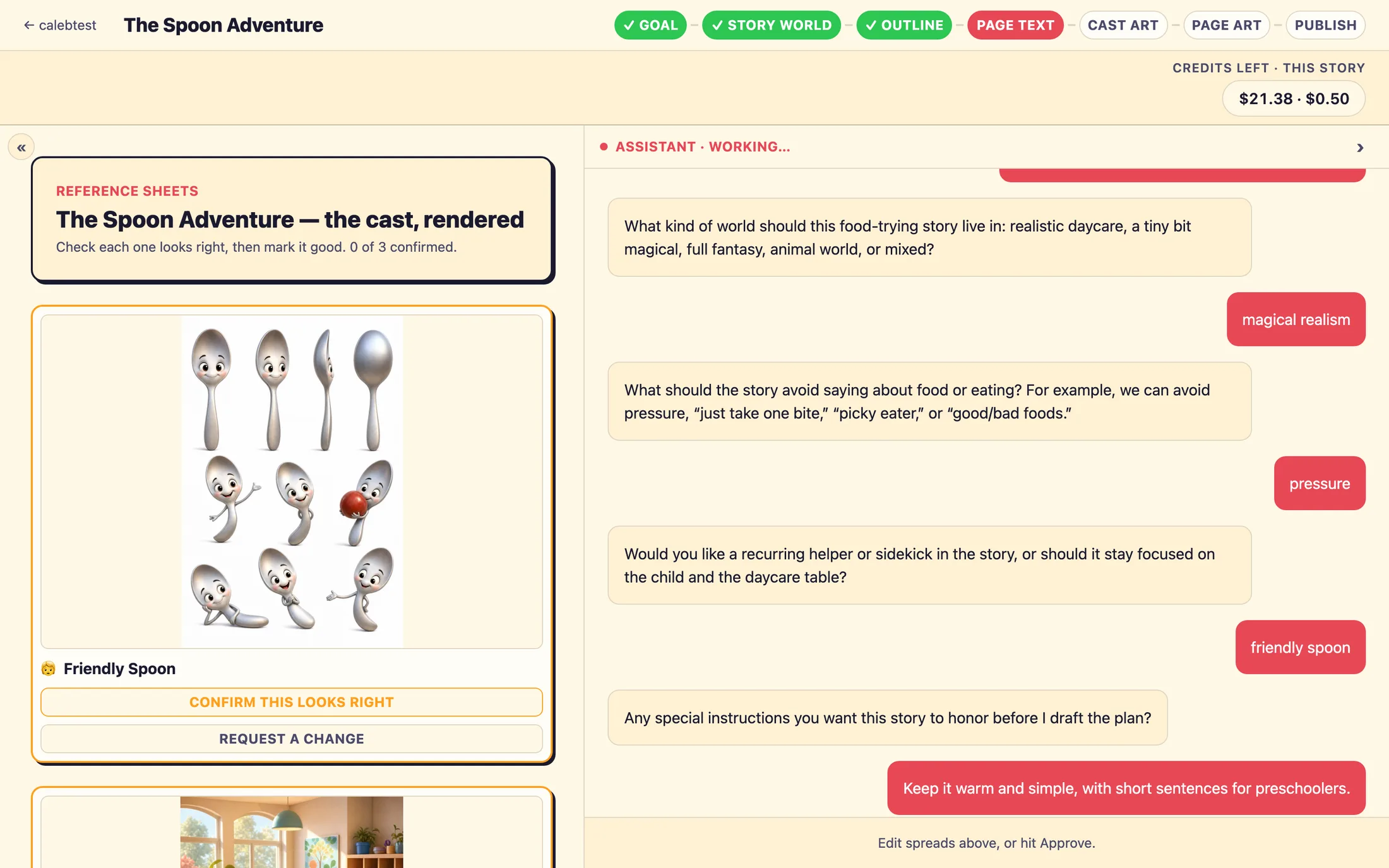
If a sheet isn't quite right, tap Request a change beneath it (or tap the image to enlarge). A lightbox opens with the sheet large, a text field labeled Change something, and a Regenerate with this change button. Describe what you'd like in plain words, the field shows an example, "e.g. remove the glasses, warmer smile, brighter colors", then tap regenerate.
Because the new art is rendered at high quality, a change takes about two to three minutes. The old picture stays visible while the new one renders, and it continues in the background, you're free to keep working. When the new version arrives, it comes in unconfirmed, so remember to give it a fresh Confirm this looks right.
The three approve gates
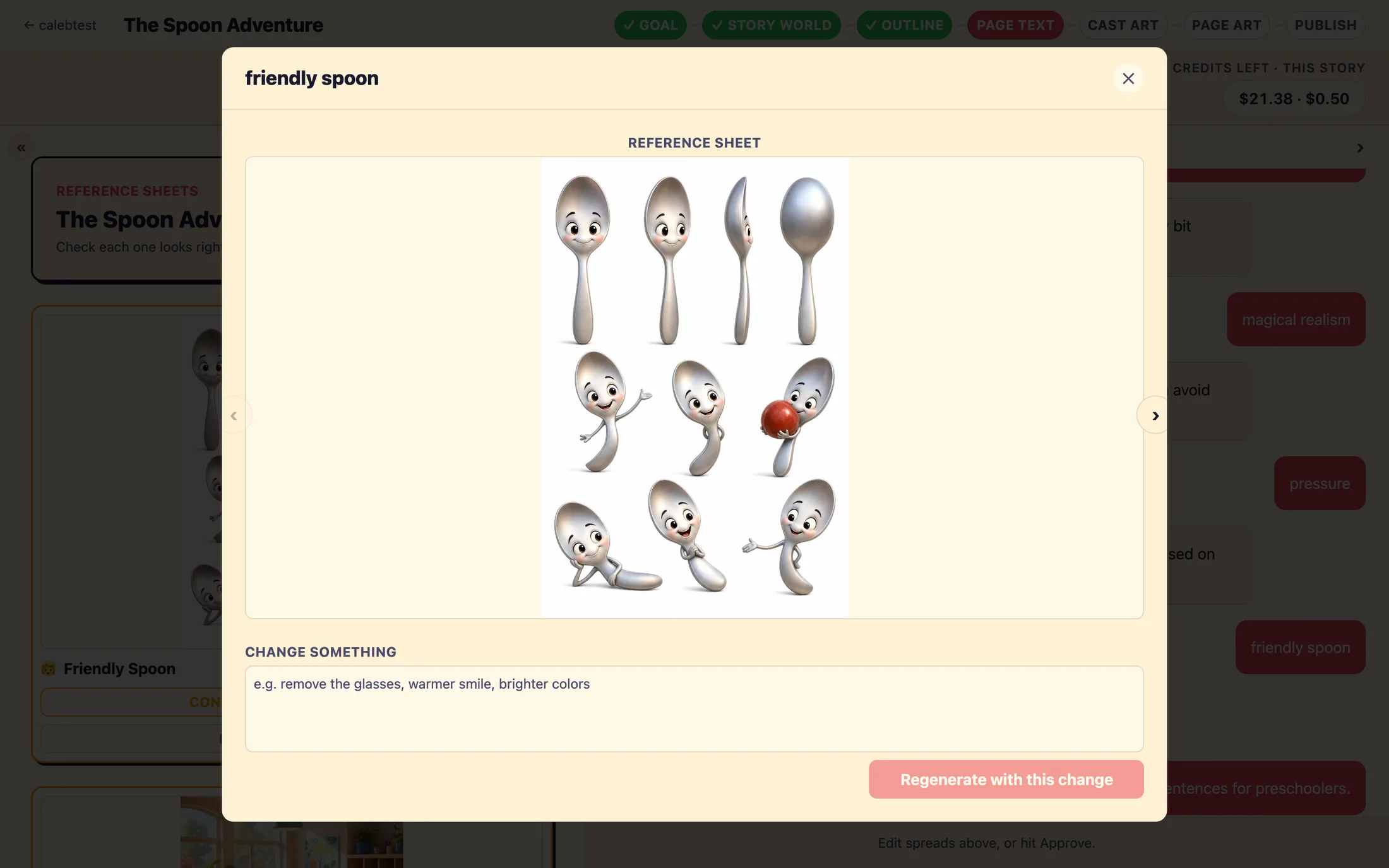
When you're ready, the main button in the setup grid tells you exactly what, if anything, is still missing. It moves through a few states before it lets you continue:
Render the stand-in child to continue…, the placeholder still needs rendering.Wait for sheets to finish rendering…, one or more sheets are still rendering.Confirm every sheet looks right (3/8), on the canvas to the left, some sheets aren't confirmed yet. Note the pointer: the confirm buttons live on the LEFT canvas, while this button sits on the RIGHT. It's an easy split to miss.
Once all three are clear, the button reads Approve sheets, continue to page art. Below it, a reminder: approving locks the cast for this story, and anything you skipped will be drawn scene by scene instead of from a reference, fine for one-off props, riskier for faces and places that repeat.
After you approve, the studio moves you to the Page Art step, where all the story pages are illustrated using the cast art you just confirmed. That's the last big render, a cover and ten story pages, brought to life.
Still stuck? Email support@prestostories.com and we'll help.