
Your dashboard
A tour of the studio hub, your storybooks list, status pills, the create button, the post-publish cards, and the ops row for your team, orders, and credits.
Your dashboard is the home base of the studio. It is the first thing you see when you sign in, and it is where everything starts. This page walks you through what is on it: your list of storybooks, the buttons that create and manage them, and the quiet row of links at the bottom for your team, your orders, and your credits.
What a storybook is
A storybook is a personalized book that families make their own child the star of. You author it once. After that, every family who visits your page creates their own version, with their own child's name, traits, and photo swapped in. So the dashboard is not a list of one child's books. It is a list of the storybooks your families can choose from.
Your first visit: the empty state
The very first time you open the studio, you have no storybooks yet, so the dashboard shows a single welcome card instead of a list. It is headed Author your first storybook and explains, in one line, what you are about to build. It shows the three steps you will go through, 1. Describe → 2. Approve writing & art → 3. Publish, and one button to begin: + Create your first storybook.
Your storybooks list
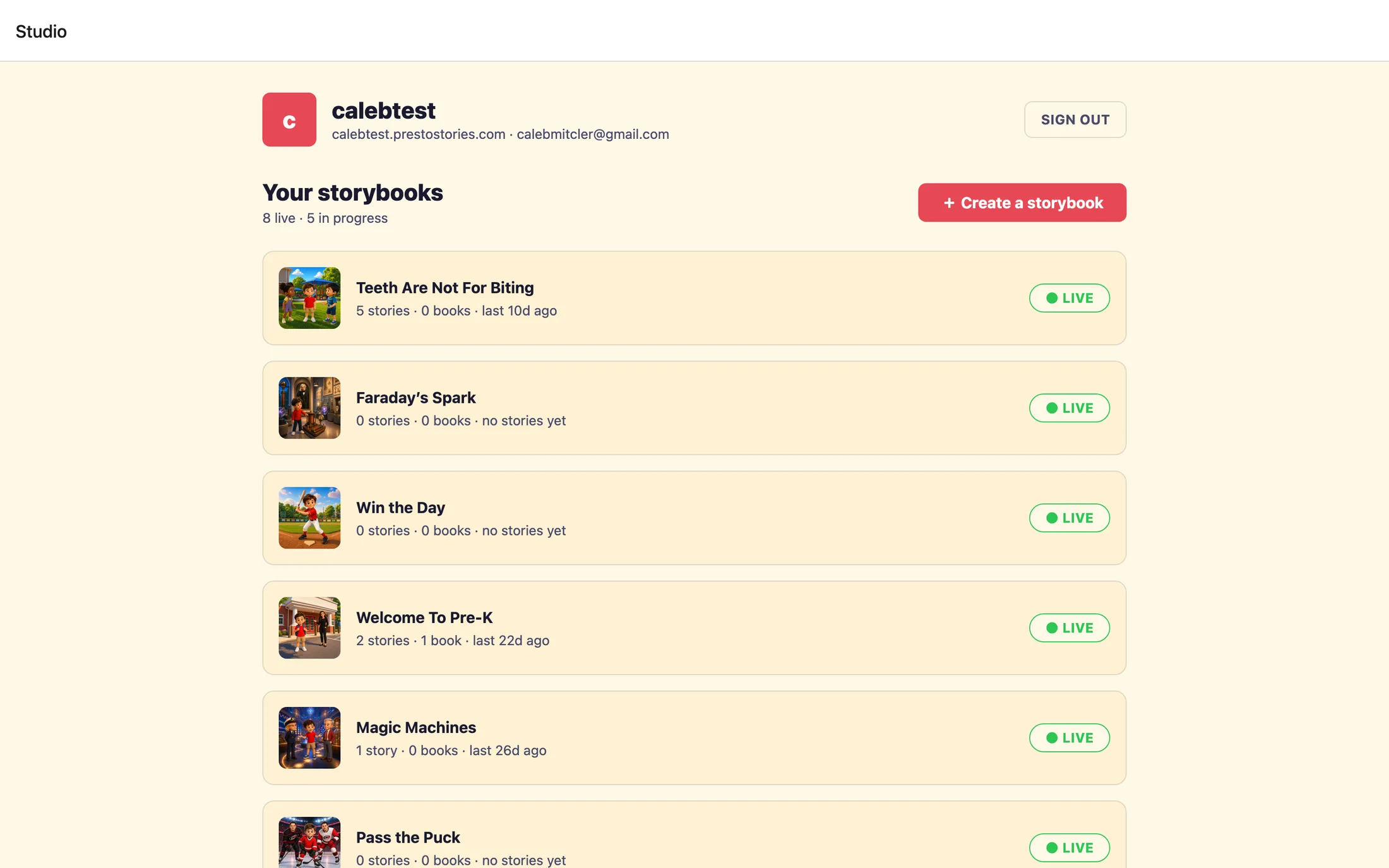
Once you have started at least one book, the welcome card is replaced by your list. At the top is the heading Your storybooks with a count line beside it, such as 2 live · 1 in progress, and the + Create a storybook button. Below that, each storybook gets its own row: a small cover picture (or a colored initial if there is no cover yet), the title, and a status pill on the right.
Reading the status pills
The pill tells you where each storybook stands. There are two published states and a set of in-progress stages:
● Live(green): published and visible to families on your page right now.⏸ Paused(amber, with the row dimmed): published before, but currently hidden from families. Nothing is lost; you can bring it back anytime.Draft: you have started this book but have not finished the writing steps yet.Writing approved: the story text is locked in, and the art is up next.Cast ready: the cast art (the illustrated style guides for your characters, places, and things) is done.Art ready: every page has been illustrated. The book is ready for its final review and publish.
The usage line on published books
Once a storybook is Live, its row also shows a small activity line, for example 3 stories · 1 book · last 2d ago. That is a quick read on how families are using it: how many personalized stories they have created, how many printed books they have ordered, and when it was last used. A book no family has touched yet reads no stories yet, and if the numbers are momentarily unavailable you will see a dash.
Creating a storybook
The + Create a storybook button (or + Create your first storybook on an empty dashboard) starts a brand-new book. When you click it, the studio creates a fresh draft titled Untitled draft and takes you straight into the authoring flow. The button shows a brief spinner while it sets things up; that is normal.
After you publish: storefront and catalog
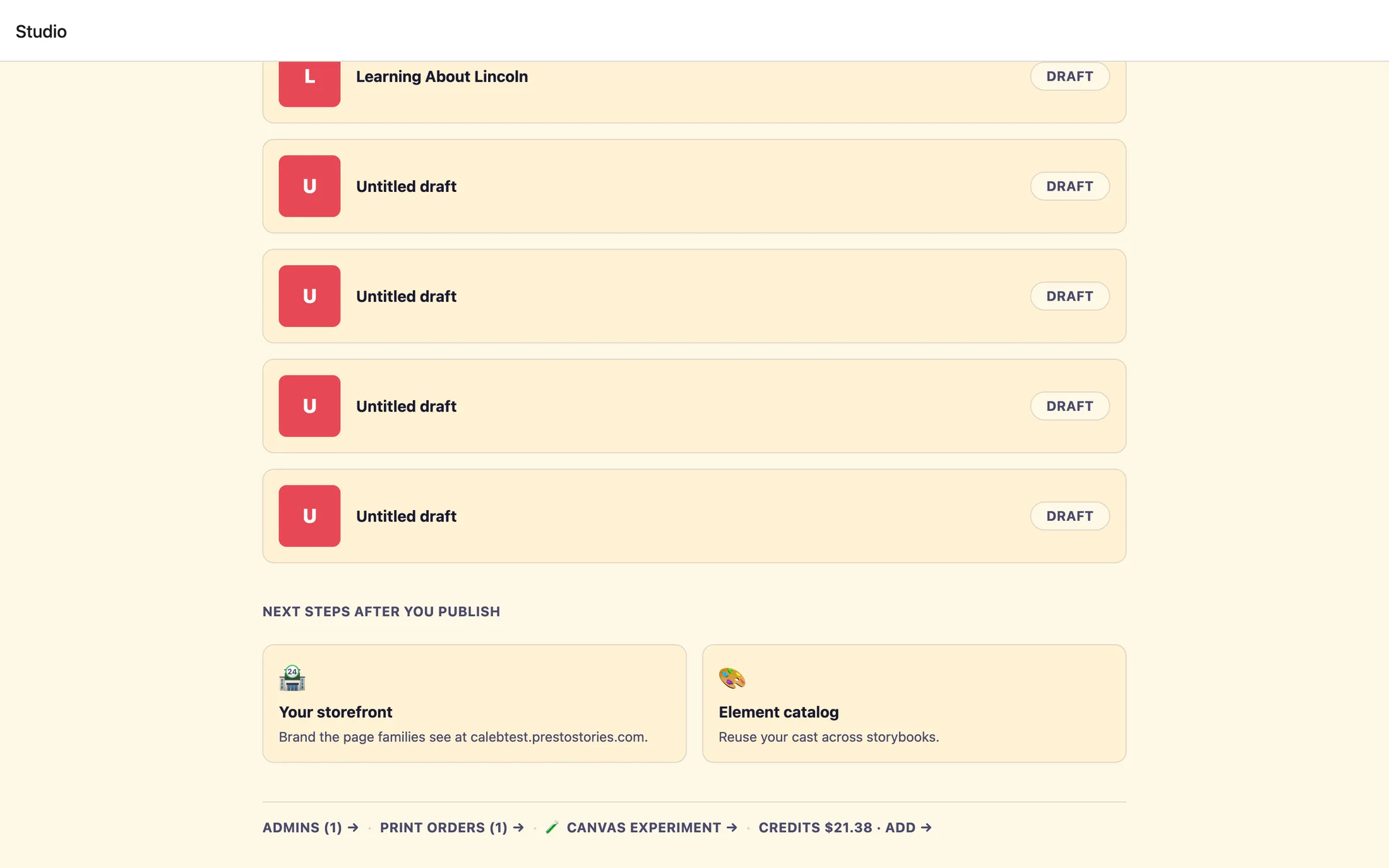
Below your storybooks list is a section headed Next steps after you publish with two cards. These are the tools that make your books findable and reusable:
🏪 Your storefront: brand the page families see when they visit your address. Your logo, colors, welcome line, and featured stories all live here.🎨 Element catalog: your reusable cast. Save a character, place, or thing once, illustrate it, and reuse it across any storybook without redrawing it.
These two cards appear once you have started your first book, and each opens its own screen. You will find full walkthroughs of both on their own help pages.
The ops row
At the very bottom of the dashboard is a single quiet line of links for the behind-the-scenes work. It reads something like Admins (2) → · Print orders (5) → · Credits $42.00 · Add →. Here is what each one does:
Adminsopens your team page, where you invite teammates and see who is on your studio. The number in parentheses is your current member count.Print ordersopens a read-only list of the books families have ordered, with each order's status and tracking. PrestoStories handles the printing and shipping.Creditsshows your studio's story-credit balance, which pays for creating and illustrating your books.
Topping up credits
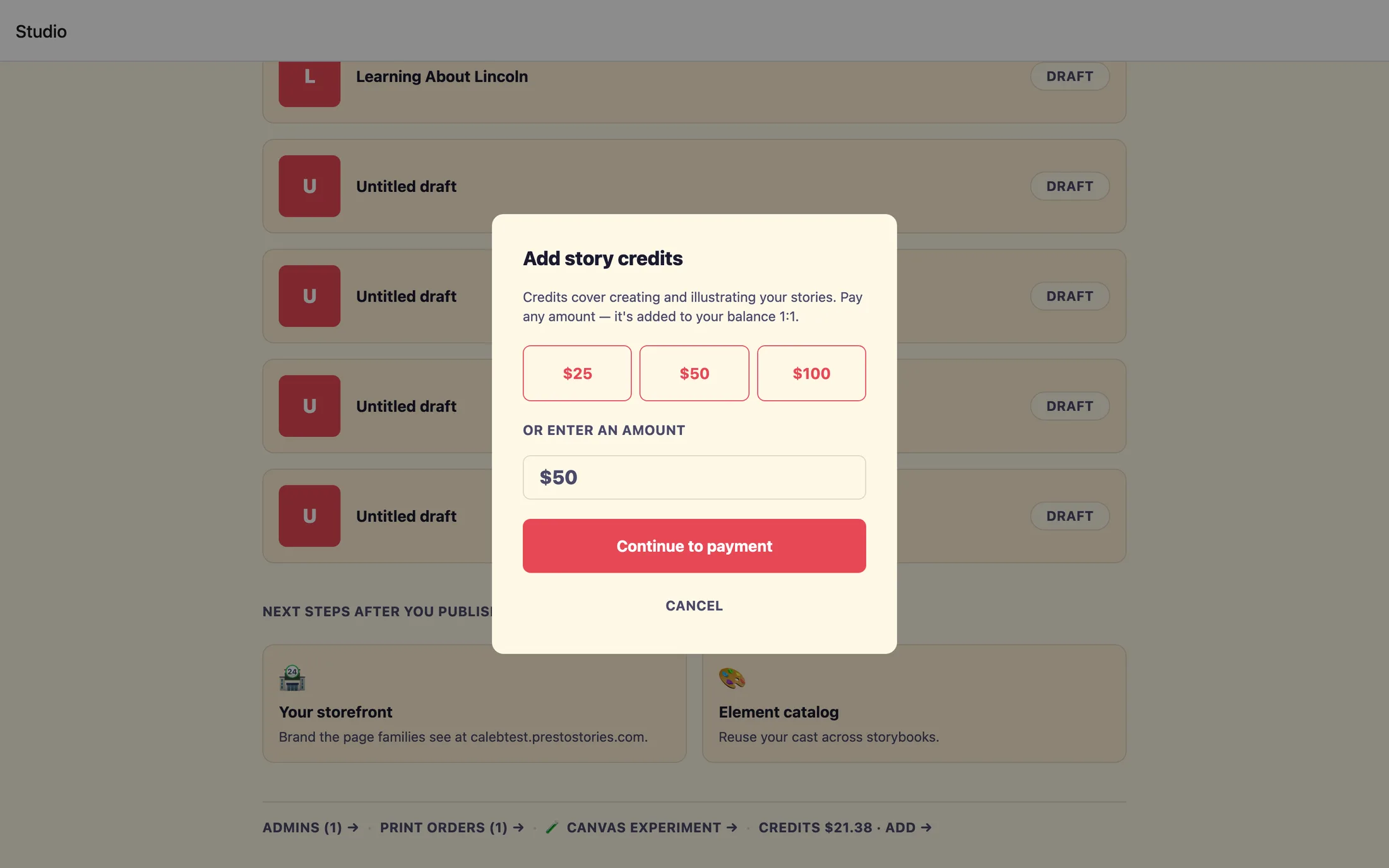
Story credits cover creating and illustrating your books. If you are an owner of the studio, the credits link ends with Add →. Clicking it opens Add story credits, where you can pick a quick amount or type your own and continue to payment. Your new balance lands a few seconds after you return, so a banner saying your credits are being added to the balance is expected, not an error.
Pausing or managing a published book
You do not pause or delete a book from the dashboard list. Instead, click the book's row to open its detail page. There you will find its stats, an ✏️ Edit book button to keep working on it, and a Manage card. For a Live book, Manage offers ⏸ Pause, hide from families, which takes the book off your page without touching any book a family already made. When you are ready to bring it back, ▶ Resume, back on your page puts it right back, instantly.
A few things worth knowing
- The dashboard refreshes itself every time you return to it, so pills and your credit balance stay current without a reload.
- There is no menu bar. Every other screen opens from a link or card on this dashboard, and you come back with your browser's back arrow or the header's back arrow.
- The studio is a desktop web tool at heart. You can peek on a phone, but authoring a book is far more comfortable on a laptop or desktop browser.
Still stuck? Email support@prestostories.com and we'll help.