
1. Describe your story
A friendly walkthrough of the opening chat in Story Studio, where you describe your storybook and approve the intent so the studio can start drafting.
Every storybook starts with a short conversation. The studio asks you a few friendly questions, one at a time, about the story you want to make. You answer in plain words, the way you'd tell a colleague. By the end of this step you'll have described your whole idea, and you'll approve it so the studio can start drafting your story world. This first step is just talking. Nothing is drawn yet, and you can leave and come back whenever you like.
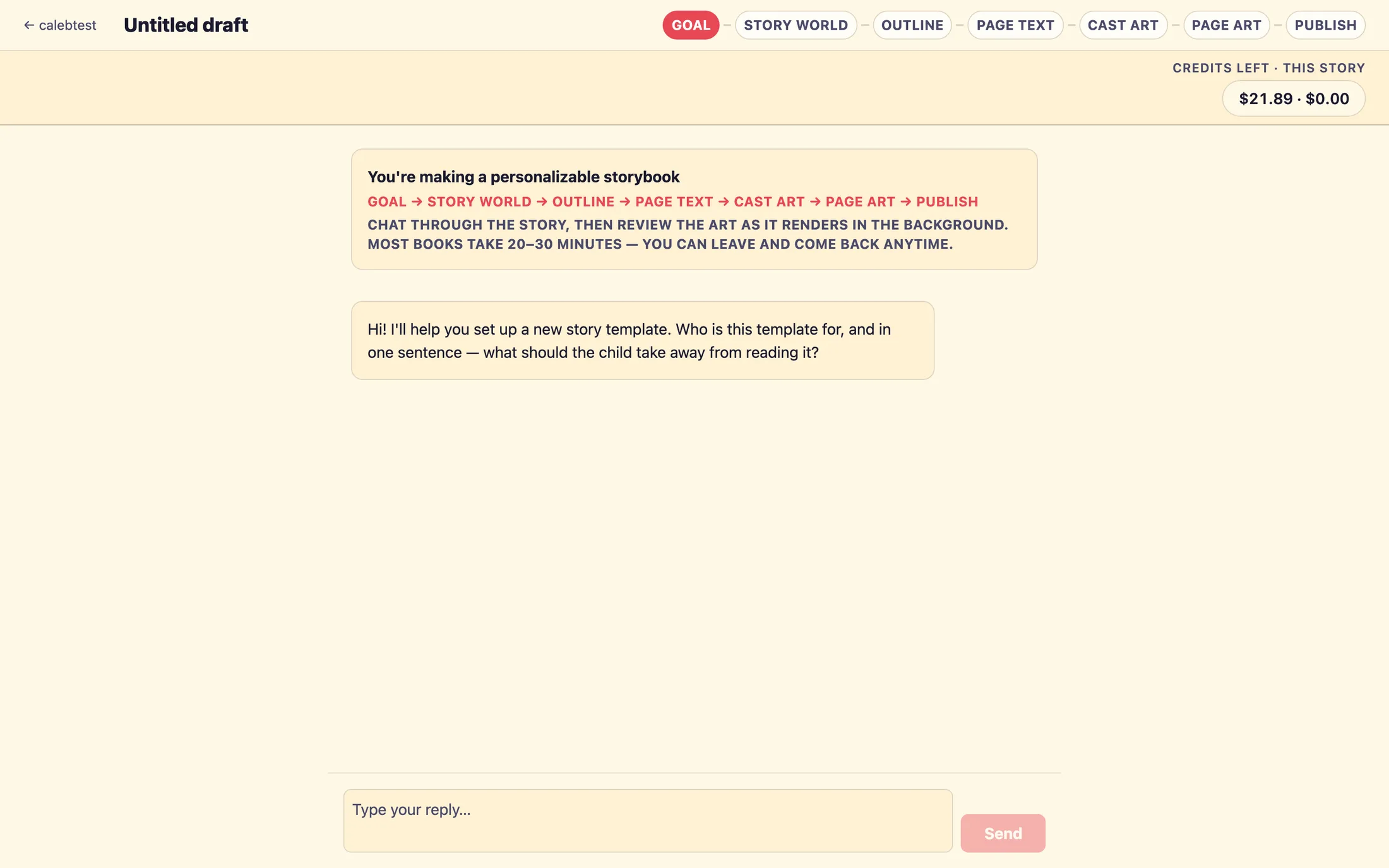
What the chat asks you
The chat asks one question per turn, so it never feels like a form. A handful of things together describe your story, some you're asked directly, and others are drawn from your answers:
- The takeaway, what a child should feel or learn from the story. For a fun story it may ask what reading it should feel like instead; for nonfiction, what a child should come away understanding. This is the heart of your book.
- Who it's for, the child or group you're writing this for.
- The end feeling, how you want a child to feel when they close the book. This is drawn from your takeaway answer and shown as an editable field, not asked as its own question.
- The setting, the look and world of the story. You'll see suggestions like realistic, magical realism, fantasy, or animal world.
- Anything to avoid, words or ideas you'd rather the story steer clear of.
- Extras, special characters or sidekicks, or any special instructions, if you have them. These are optional.
One thing the chat won't ask about is an anchor, a repeating object or ritual, like a favorite blanket or a bedtime routine. Most stories don't need one, so it's only picked up if you happen to mention it. If you don't, that's completely normal.
Answering: tap a chip or type your own
Under most questions you'll see a few tappable suggestions, small outlined pills. Tapping one sends it as your answer, which is the fastest way through. Just below them you'll see the hint …or type your own answer below, and the message box reads Tap a suggestion above, or write your own…. Typing your own answer always works and always wins over a suggestion. Use whichever feels natural.
Adding reference photos (optional)
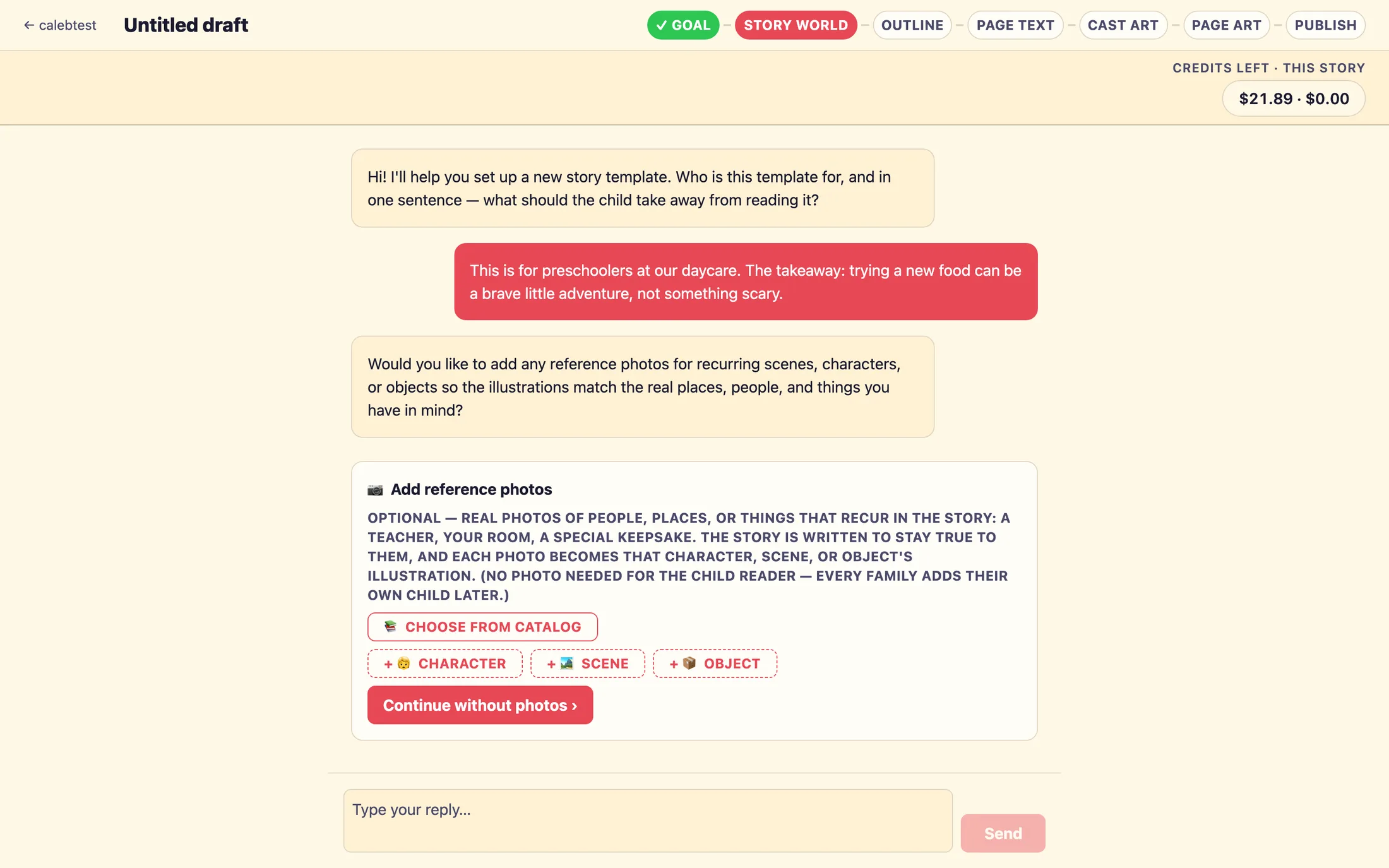
Early in the chat you'll be offered the chance to add reference photos. These are real photos of people, places, or things that recur in your story, a beloved teacher, your classroom, a special keepsake. When you add one, the story is written to stay true to it, and the photo becomes that character, scene, or object's illustration. It's a lovely way to make a book feel like it belongs to your program.
You never need a photo of the child
Reference photos are only for supporting people, places, and things, never the child reading the book. Every family adds their own child later, and each family's own child becomes the star of their copy. So there's no child photo to collect and no privacy worry here. The stand-in child you'll see while building is just a placeholder.
At the photo question you'll see two chips: 📎 Add reference photos and Skip for now. Tapping the add-photos chip opens a small panel right in the chat titled 📷 Add reference photos. There you can add a + 🧒 Character, a + 🏞 Scene, or a + 📦 Object. Each photo gets a Name and a short description, which help match the photo to the right part of your story, so it's worth naming them clearly.
- Tap
📎 Add reference photosto open the panel. - Tap
+ 🧒 Character,+ 🏞 Scene, or+ 📦 Objectand choose a photo from your device. - Give it a clear
Nameand a short description, like "wise teacher, appears throughout." - Add more if you'd like, there's no limit here.
- Press
Add 1 reference & continue ›(the count grows with each photo). If you changed your mind,Continue without photos ›moves on with none.
If you skip, you can always add them later
Skipping is never a dead end. Tap Skip for now (or just type an answer with the word skip in it) and the chat continues. Once you do, the screen splits: your conversation moves to the right, and a workspace called the canvas appears on the left. The canvas has a REFERENCE PHOTOS shelf with the same + 🧒 Character, + 🏞 Scene, and + 📦 Object chips, so you can drop in a recurring person, place, or thing at any time while you're still describing your story. The canvas shelf holds up to five photos.
Reviewing and approving your idea
As you answer, your idea is quietly assembled into a small summary card in the chat, headed STEP 1 · INTENT. It gathers your answers into tidy groups, the takeaway, who it's for, the end feeling, the setting, and any guardrails or extras, along with the Character slots (N), which is the role each family's own child steps into. Every field on this card is editable, so read it over and fix anything that isn't quite right.
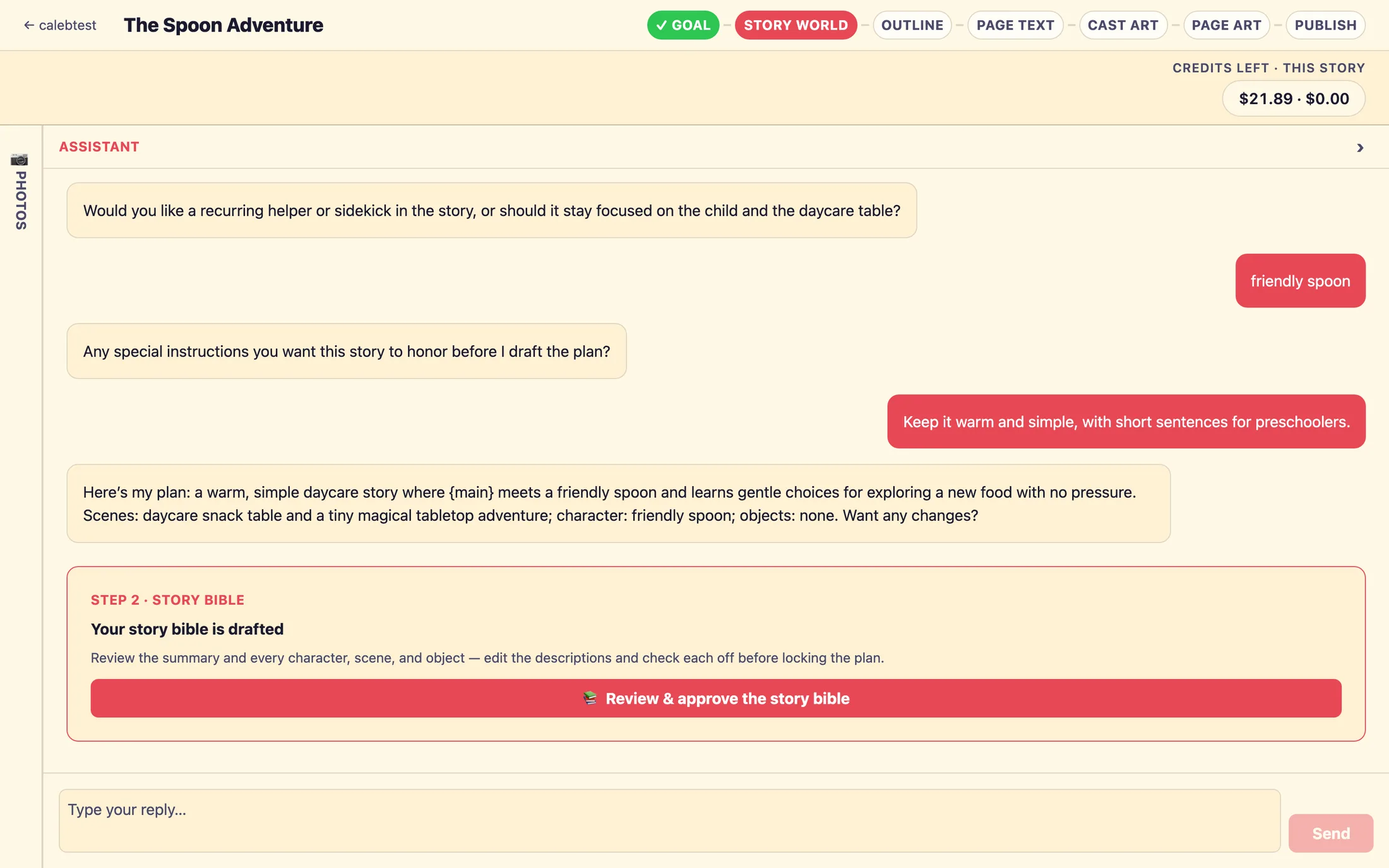
When it all looks right, press Approve intent, draft the bible. This starts drafting your story world, the cast, settings, and summary that your whole book is built on. You'll see a short Thinking… moment as the work begins, and the first step on the progress strip at the top flips to a green check. That's your cue that the next step is on its way.
That's the whole first step. You've described your story in your own words and handed over a clear brief. Next, you'll review the story world that gets drafted, every character, scene, and object, before any art is made.
Still stuck? Email support@prestostories.com and we'll help.