
The Element Catalog
Save your recurring cast, the people, places, and things in your stories, illustrated once and reused for free across every storybook.
The Element Catalog is where you save a reusable cast, the real people, places, and things that show up again and again in your stories. You illustrate each one once, and from then on you can drop it into any storybook for free. Think of it as your studio's own props-and-cast closet: your director, your building's front room, the donation basket that appears in every fundraiser story.
What the catalog is for
When you author a storybook, some characters and settings are one-offs. But others recur: your lead teacher, the reading corner, your church sanctuary. Instead of describing and illustrating those from scratch in every new book, you save them here once. Each saved item is called an element, and it comes in one of three kinds:
- A character, a person who appears in your stories (
🧑 character). For example,Ms Tony. - A scene, a place or setting (
🏞 scene). For example,Church sanctuary. - An object, a thing that matters to the story (
📦 object). For example,Donation basket.
Creating an element
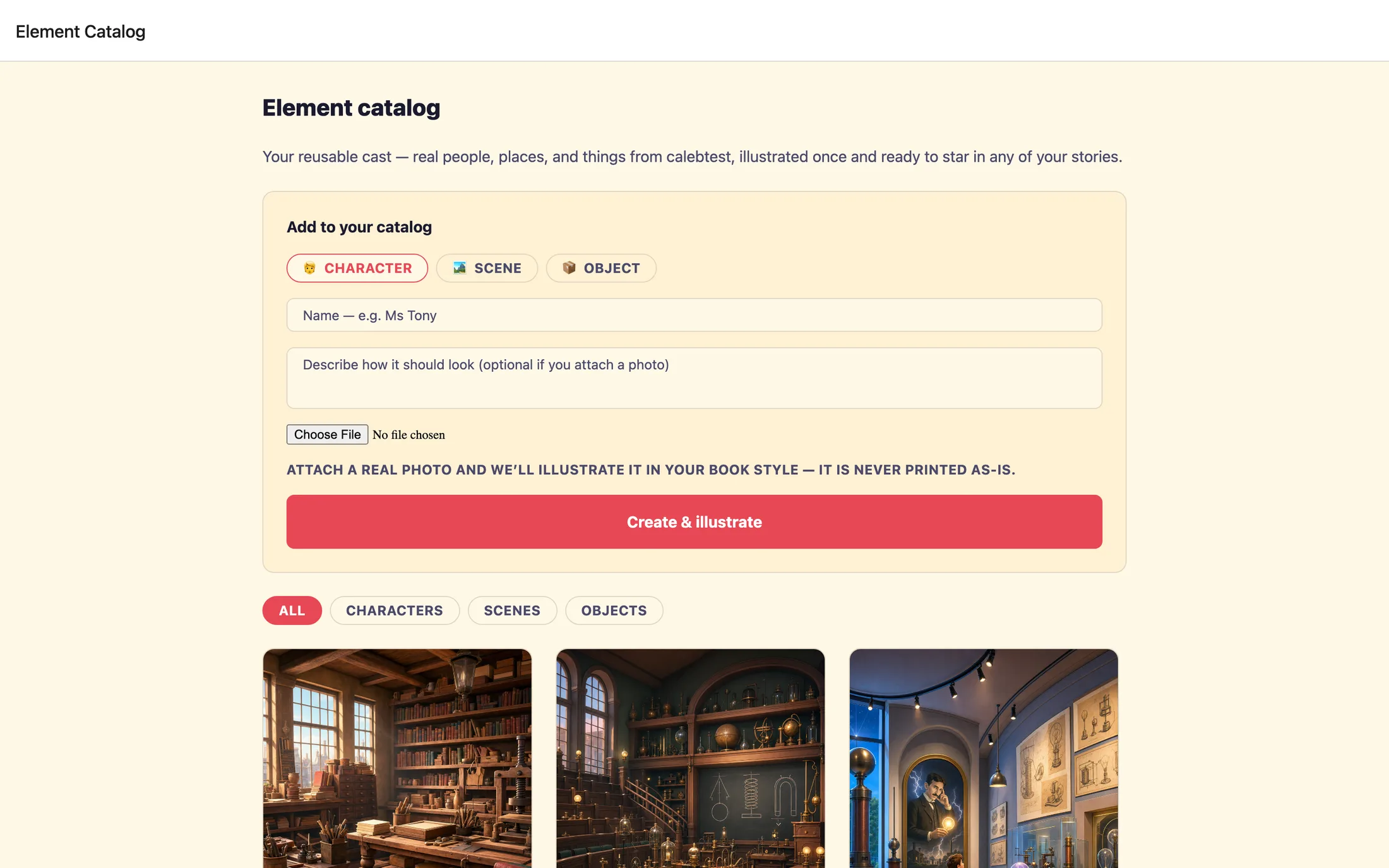
At the top of the catalog page is a card titled Add to your catalog. Filling it out takes under a minute.
- Pick the kind: tap
🧑 character,🏞 scene, or📦 object. - Give it a name in the name field. Keep it recognizable, this is how you'll spot it later, so
Ms Tonybeatsteacher 2. - Describe how it should look in the description box, or attach a photo, you can do either or both. If you have a real photo of the person, place, or thing, add it and it will be illustrated in your book's style. The hint on screen reminds you the photo
is never printed as-is. - Tap
Create & illustrate. The element appears in your grid right away and starts being drawn.
How the art gets made
As soon as you tap Create & illustrate, the new element's card shows an Illustrating… spinner while its art is drawn in your book's style. This takes a few minutes, roughly two-and-a-half to three per element, because the art is made at full quality. You can leave the page and come back; the grid checks for finished art on its own every several seconds, so the picture appears without you refreshing.
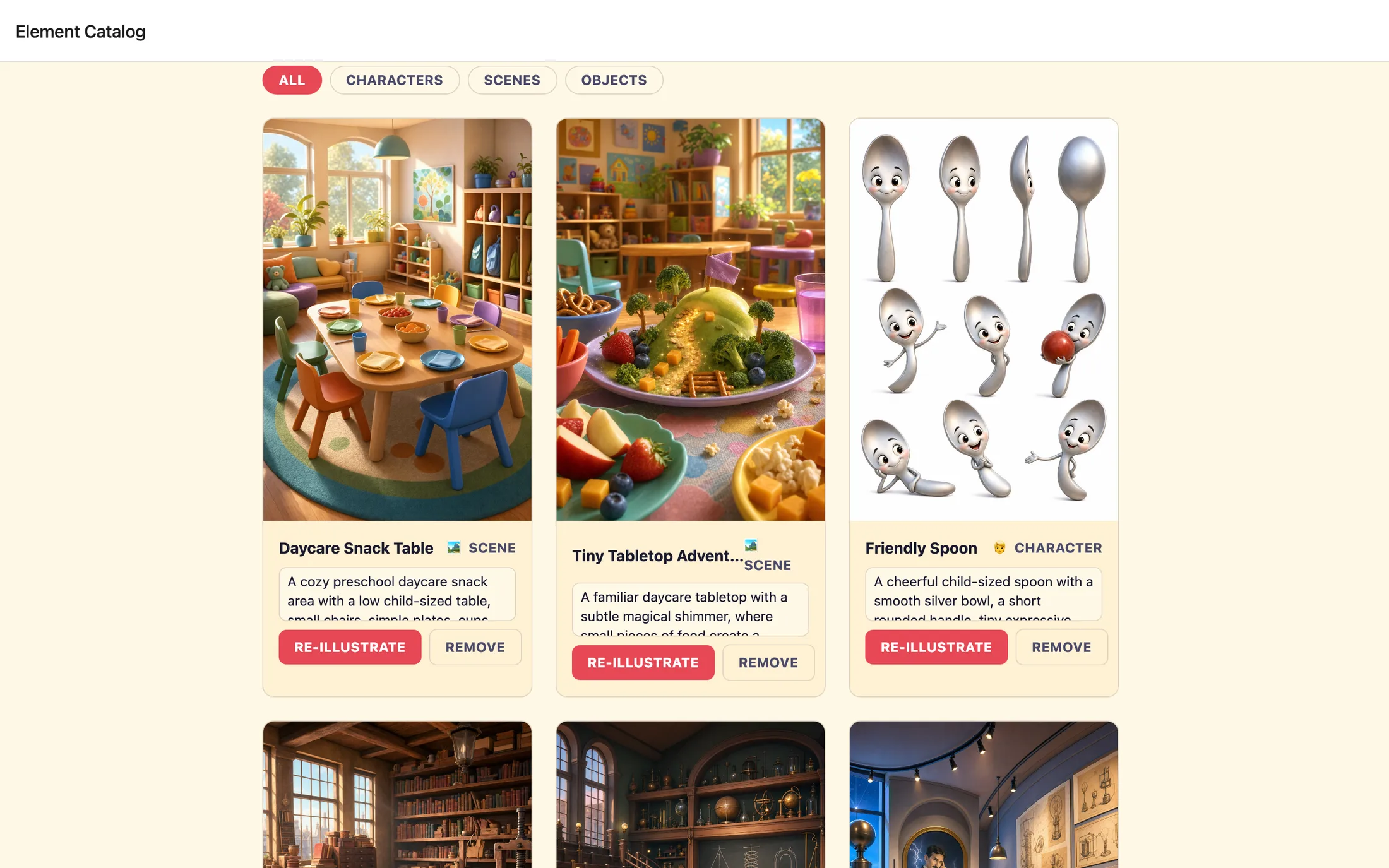
When the art is done, the card shows the finished illustration. If you attached a photo, you'll see it as a small thumbnail in the corner, so you can compare. An element you haven't illustrated yet shows the type emoji with Not illustrated yet, and its button reads Illustrate instead of Re-illustrate.
Changing or removing an element
Each card has a Describe the look… box you can edit, plus two buttons: Re-illustrate and Remove.
To change how an element looks, edit its description, then tap Re-illustrate. The new art is drawn from whatever the box says at that moment, again a few minutes, with the same Illustrating… spinner.
Finding elements later
As your catalog grows, use the filter tabs above the grid, All, Characters, Scenes, Objects, to narrow the list to one kind. Before you've added anything, you'll see a friendly Nothing here yet message inviting you to add your first element above.
Reusing your cast, for free
This is the payoff. Once an element lives in your catalog, it's ready to star in any storybook you author, and pulling it in costs nothing extra, because its art already exists.
When you're authoring a storybook and reach the point where you add reference photos, you'll see a 📚 Choose from catalog button alongside the options to add a new character, scene, or object. Tap it to pick from everything you've saved. Later, at the Cast art step, any element you brought in from the catalog carries a 📚 from your catalog, reused free tag, your confirmation that it's the same illustrated cast member, reused at no cost.
The more of your recurring cast you save here, the faster every new storybook goes, and the more consistent your director, your building, and your favorite props look from book to book.
Still stuck? Email support@prestostories.com and we'll help.