
3. Voice & Outline
After you lock the Story World, you pick your story's voice, then review the Outline, the beat-by-beat arc your storybook will follow.
You have approved the Story World, the cast, scenes, and summary for your storybook. Two steps stand between you and the page text. First you pick your story's voice: you tap the sample lines that sound most like your book. Then you review the Outline: the beat-by-beat arc the whole story follows. Both are quick, and this page walks you through each one.
First: pick your story's voice
The moment you approve the Story World, a panel titled 🎙 Pick your story's voice appears in the chat dock. This is a required step. Until you finish it, the Outline review stays locked and the page text will not draft, so don't skip past it looking for the beats. If you approved the Story World and the Outline review hasn't shown up yet, this panel is why.
The panel shows a few short sample lines, each written in the reading voice you chose for this story. They are little tastes of how a page might sound. Your job is simple: read them and tap the one that sounds most like your book.
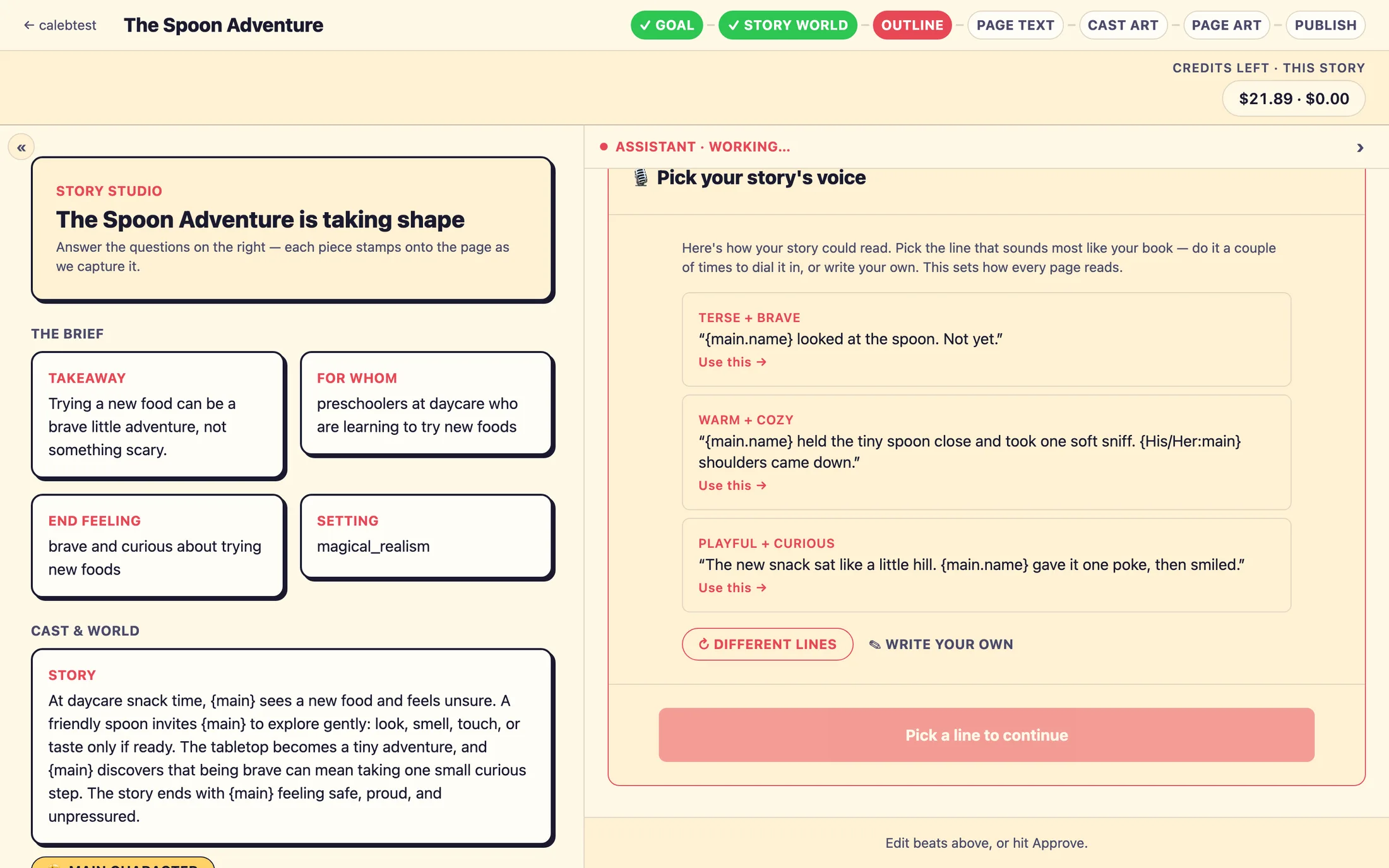
- Read the sample lines. Each one is a different flavor of the reading voice you picked earlier.
- Tap
Use this →on the line that sounds most like your book. It becomes a small chip at the top of the panel. - Want to dial it in? Before you pick, tap
↻ Different linesfor a fresh set of samples. Once you've picked a line, that button becomes↻ Show 3 more, tuned to your picks, tap it to see fresh samples tuned toward the one you chose, then tap a second favorite. Doing this a couple of times sharpens the voice. - Prefer your own wording? Tap
✎ Write your ownand type one line in the exact voice you want. - When you have at least one pick, the button at the bottom reads
Use this voice, continue. Tap it to save.
The Outline is already drafting
Here's the reassuring part: the Outline, the beat sheet, starts drafting in the background the instant you reach this step, while you're still picking your voice. A beat is one story moment: think of it as one page's worth of "what happens here." You'll see a card that reads Drafting the beat sheet… with a filling bar. This usually takes about half a minute. The bar is a friendly time estimate, not a live meter, so if it lingers near the end it just means the draft is taking a touch longer, it isn't stuck. Saving your voice pick doesn't start this draft; it unlocks the review so you can open the beats once they're ready.
When it's ready, a card appears in the dock: Your N beats are drafted, with a 📊 Review & approve the beats button. Tap it to open the Outline in a full-screen review.
Reading the Outline
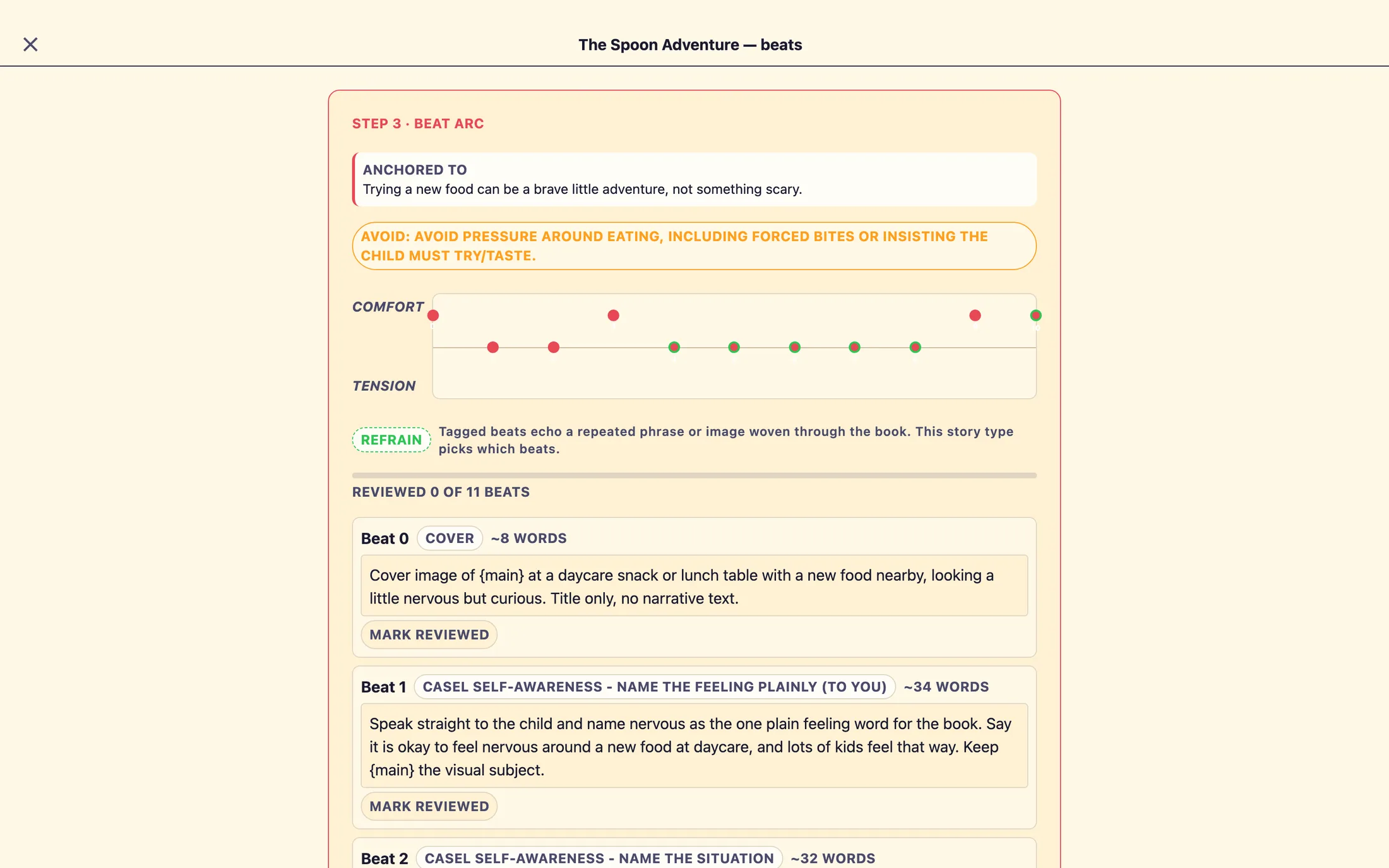
The Outline review is headed STEP 3 · BEAT ARC, that's the same thing the top progress strip calls "Outline," just its formal name. At the top you'll usually see an Anchored to box explaining the idea the story is built around, and sometimes an Avoid: chip listing words the story stays away from. These are set by the story type and are there for your reference.
The tension arc
Below that is a small chart with comfort at the top and tension at the bottom, and one numbered dot for each beat. The dots trace the emotional shape of the story: dots that dip low are the tense, wobbly moments; dots near the top are the calm, reassuring ones. It's a quick way to see the whole arc at a glance, a good story rises and settles rather than staying flat. Press and hold a beat row below and its dot lights up so you can find it on the chart. The chart itself isn't editable; it simply reflects the beats.
Each beat row
Each beat shows a Beat N label, a pill naming the story idea it carries, a ~N words target, and a text box describing what happens on that beat. The one thing you can change here is that description, the text box. Tap it and rewrite what happens on the beat in your own words. The beat numbers, the word targets, and the story-idea pills are the structure set by the story type, so those stay put.
The refrain tag
Some beats carry a small dashed refrain ⓘ tag, and their dot gets a green ring on the chart. A refrain is a phrase or image that echoes through the book, like a recurring object, or a line that comes back a few times to give the story its rhythm. Tapping the refrain ⓘ tag opens a short explainer telling you exactly what will echo on that beat. It's a label, not a switch: which beats carry the refrain is decided by the story type, so you can't add or move them, but it's helpful to know which pages will circle back to that repeated moment.
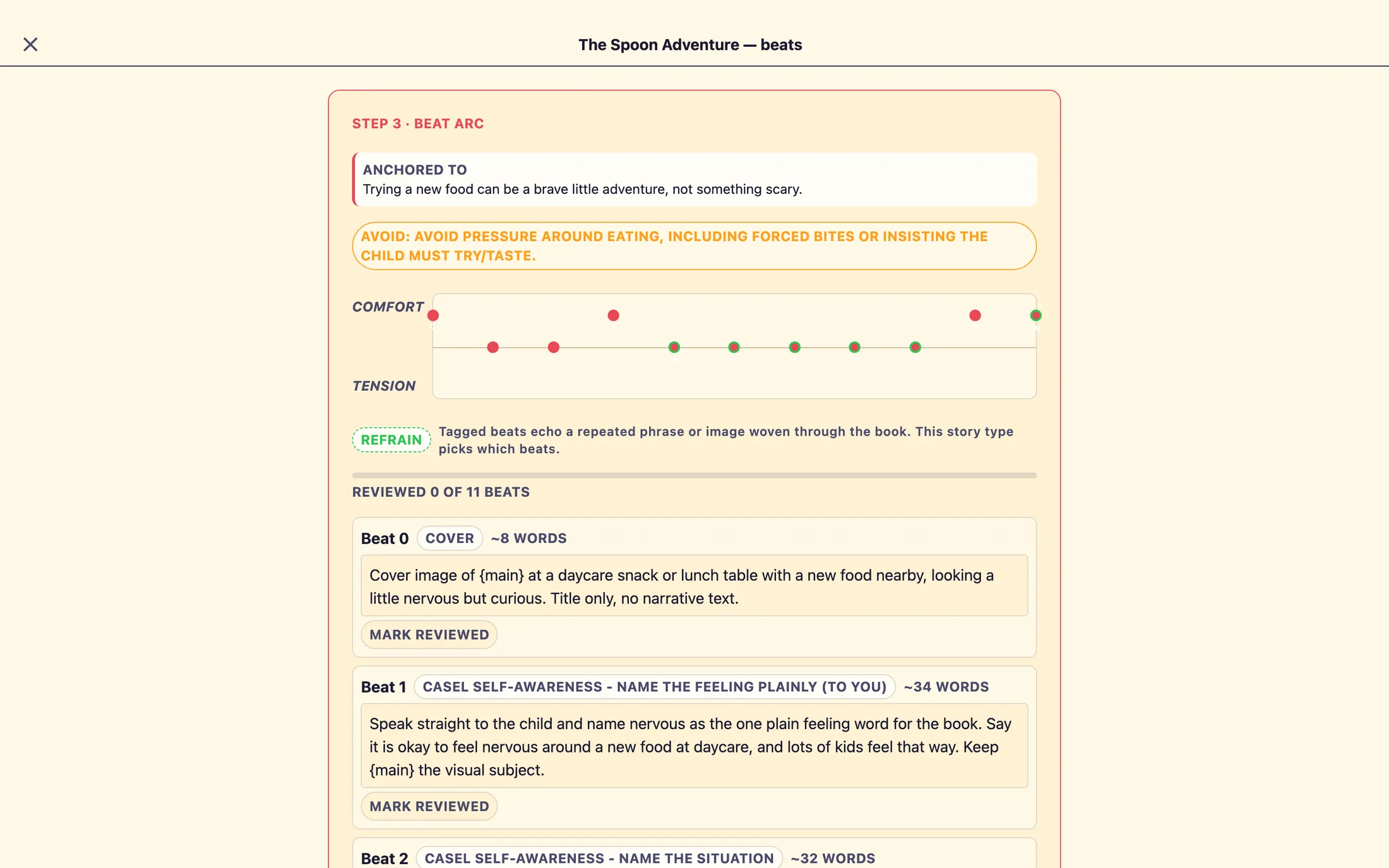
refrain ⓘ tag to see what recurring element echoes on that beat.Checking beats off as you go
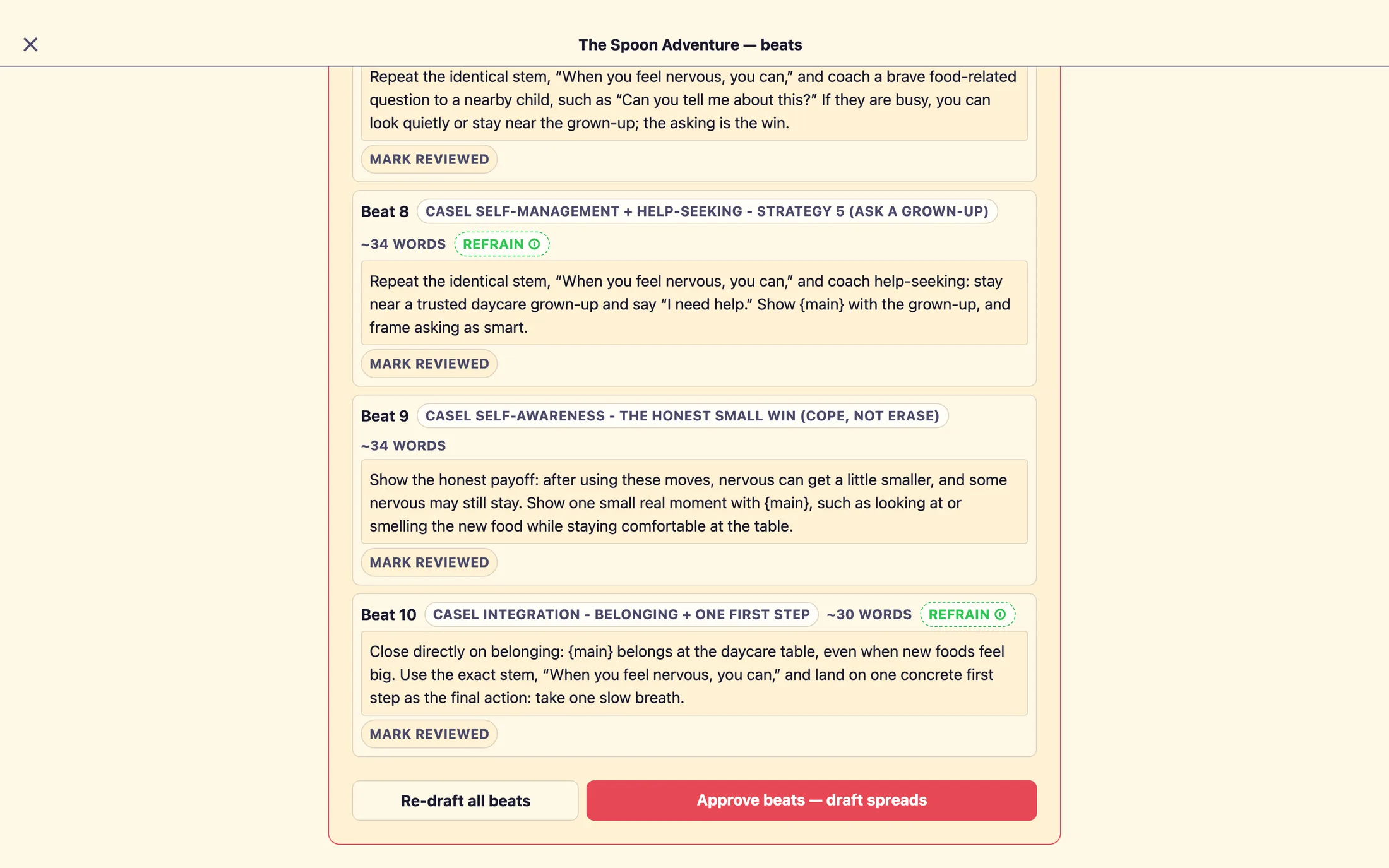
Each beat has a Mark reviewed button that flips to ✓ Looks good when you tap it, and a Reviewed X of N beats bar tracks your progress. This is just a personal checklist to help you work through the arc, it never blocks anything, and the checkmarks reset if you close the review. Only your text edits are saved.
Re-drafting the whole outline
If the arc isn't landing, the Re-draft all beats button gives you a completely fresh outline. Use this when you want a different take, not a small fix. It replaces every beat, including any edits you've typed, so a confirmation dialog asks you to be sure first. There's no per-beat redraft; for small tweaks, just edit the beat's text directly.
Approve the Outline
When the arc reads well, tap Approve beats, draft spreads at the bottom. The studio locks the Outline and immediately begins drafting the full page text, a cover and ten story pages, which is your next review step.
Still stuck? Email support@prestostories.com and we'll help.