
Team & invitations
How to invite co-authors to your Story Studio, the difference between owner and editor roles, and how to work as a team without stepping on each other.
You don't have to build your storybooks alone. The Admins screen lets you invite co-workers so they can help write and publish stories for your storefront, the page families visit at your own address. This page walks you through sending an invite, what happens on the other end, and the small difference between the two team roles.
Where to find your team
Everything lives on one screen. From your dashboard, look along the quiet bottom row and tap Admins (n) →. The number in parentheses is how many people are on your team right now.
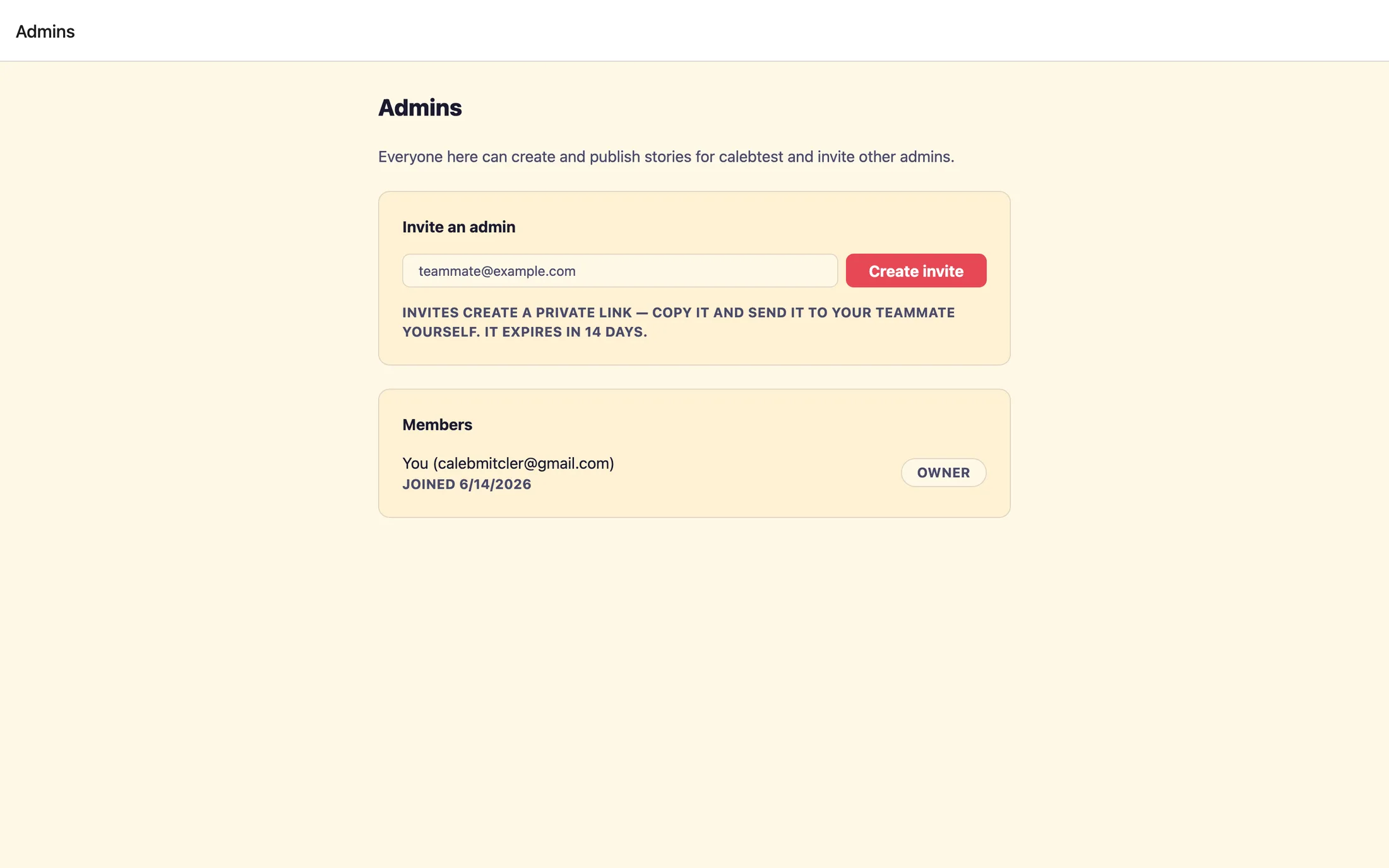
The screen is titled Admins, and its subtitle sums up the idea: everyone here can create and publish stories for your organization, and everyone can invite other people. Three cards stack down the page, a place to send an invite, a list of invites you're still waiting on, and the roster of people already on the team.
Sending an invitation
- In the
Invite an admincard, type your co-worker's email into the field (it readsteammate@example.comuntil you start typing). - Tap
Create invite. That's it, an invitation email goes out to them automatically, with a one-click link that drops them straight into your studio. - Their email address now appears under
Pending inviteswith an expiry date. It stays there until they accept.
If you mistype the address, you'll see Enter a valid email address., just fix it and tap Create invite again. Invitations expire after 14 days, so if someone doesn't accept in time, send a fresh one.
If the email doesn't arrive
Now and then an email service will block or delay a message. If the studio couldn't send the invitation, you'll see this instead:
Invite created, but the email failed to send, copy the link below instead.
When that happens, find the person's row under Pending invites and tap Copy link, it flips to ✓ Copied for a moment. Paste that link into a message or email you send yourself. It opens the same invitation. One caution: the link is tied to the exact email you invited, so send it only to that person, it won't work if they forward it to someone else.
Pending vs. accepted
An invitation lives in one of two places, and they're easy to tell apart:
- Pending, the invite has gone out but the person hasn't joined yet. Their email sits in the
Pending invitescard with anexpires {date}note. From here you canCopy linkto resend it, or tapRevoke(in red) to cancel it. Revoke takes effect immediately with no confirmation, so tap it only when you mean it. - Accepted, once they sign in through the link, they move down into the
Memberscard and theirPending invitesrow disappears. Now they're a full member and can start authoring.
The two roles: owner and editor
Each person on the Members roster has a small role pill next to their name. There are exactly two roles, and for day-to-day work they behave almost identically.
- owner, can do everything an editor can, and also tops up story credits (the balance that covers creating and illustrating your stories) from the dashboard.
- editor, can create, illustrate, publish, and manage storybooks, and can invite other people, exactly like an owner. The one thing an editor can't do is add credits.
So the practical difference is narrow: both roles author and invite freely; only owners handle the money. If credits run low, an owner opens the dashboard, taps Add →, and chooses Add story credits. An editor who runs out simply asks an owner to top up.
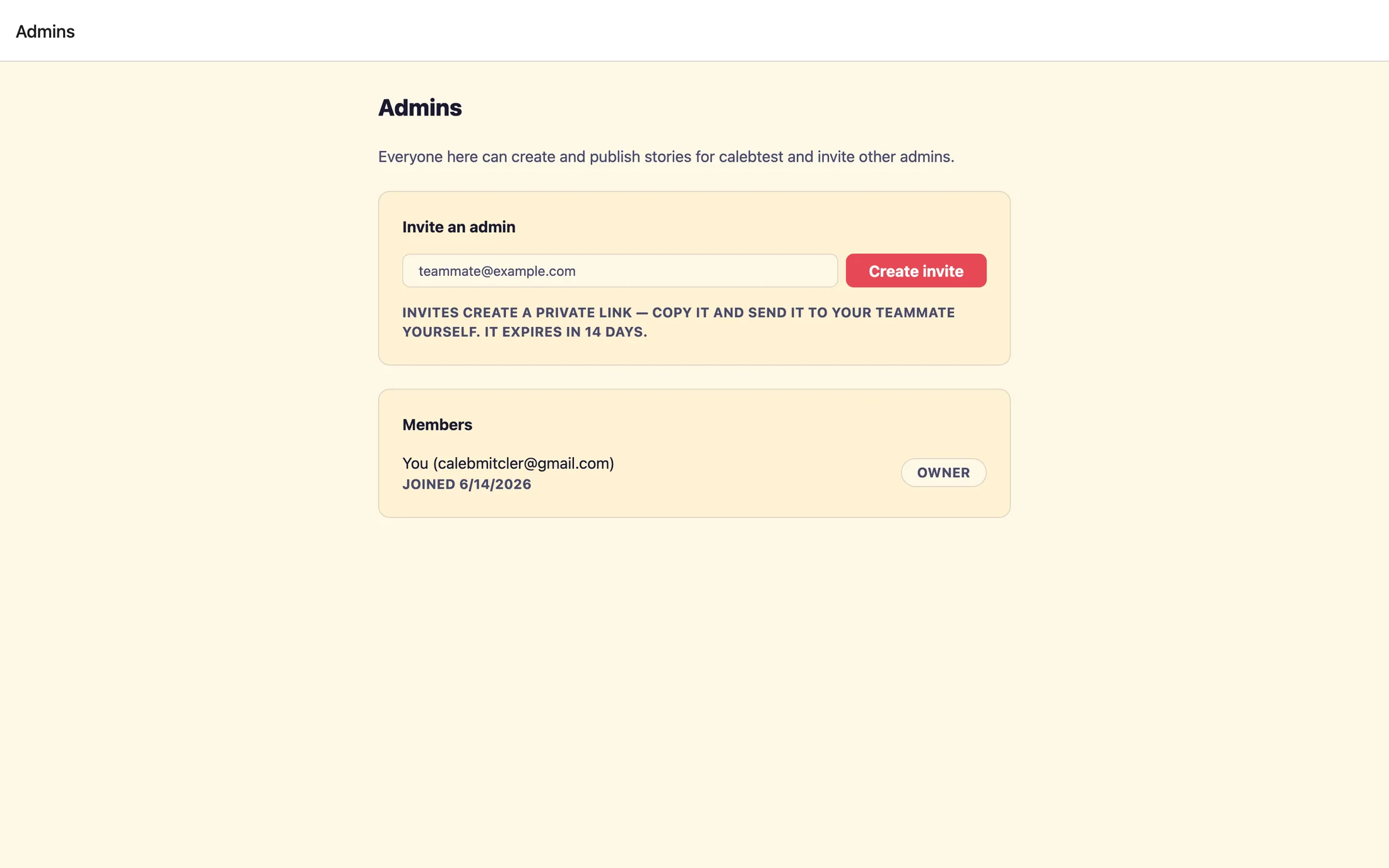
A few things you'll notice on the roster: you appear on the roster as You ({your email}), members are listed in the order they joined, so whoever set up the organization first shows at the top. People you invited show the email address you sent the invitation to. Anyone who was set up when your organization was first created shows as Founding admin.
Removing someone or changing a role
One person per storybook at a time
Teammates are genuinely helpful, one person can be building next month's book while another publishes this month's. Just keep one simple rule of thumb: only one person should have a given storybook open at a time.
Your work saves automatically as you go, but if two people edit the same book at once, the last change saved wins, and someone's edits could quietly get overwritten. Different books at the same time is completely fine. Same book, one driver.
A good team habit: split up who owns which storybook, and give each other a quick heads-up before opening someone else's book to make an edit.
Still stuck? Email support@prestostories.com and we'll help.