
2. Approve the Story World
Reviewing and approving the drafted Story World (bible): title, story type, narration voice, summary, the Cast, child outfit, reference photos, per-item sign-off, and the one-way approve gate.
After your first chat, the studio drafts your Story World, the plan behind your storybook. This is where you read it over, tidy it up, and give it your blessing. It is the second step in the flow, right after your goal, and it is a one-way gate: once you approve it, it locks. So take your time here.
The Story World (shown inside the studio as the story bible) is the blueprint for the whole book. It holds the title, the kind of story it is, how the words should read aloud, a short summary of what happens, and the Cast, the scenes, characters, and objects that will be illustrated. Nothing is written on the pages yet. You are approving the plan, not the finished art.
Open the review
When the plan is ready, a card appears in your chat with the heading STEP 2 · STORY BIBLE and the line Your story bible is drafted. Click 📚 Review & approve the story bible to open it.
The review slides up as a full screen. That is on purpose, this is a careful read, so it pops out of the little chat dock into a roomy page. At the top you will see a green bar reading Reviewed X of Y. That counter is a personal checklist to help you keep your place. More on it below.
Check the top of the plan
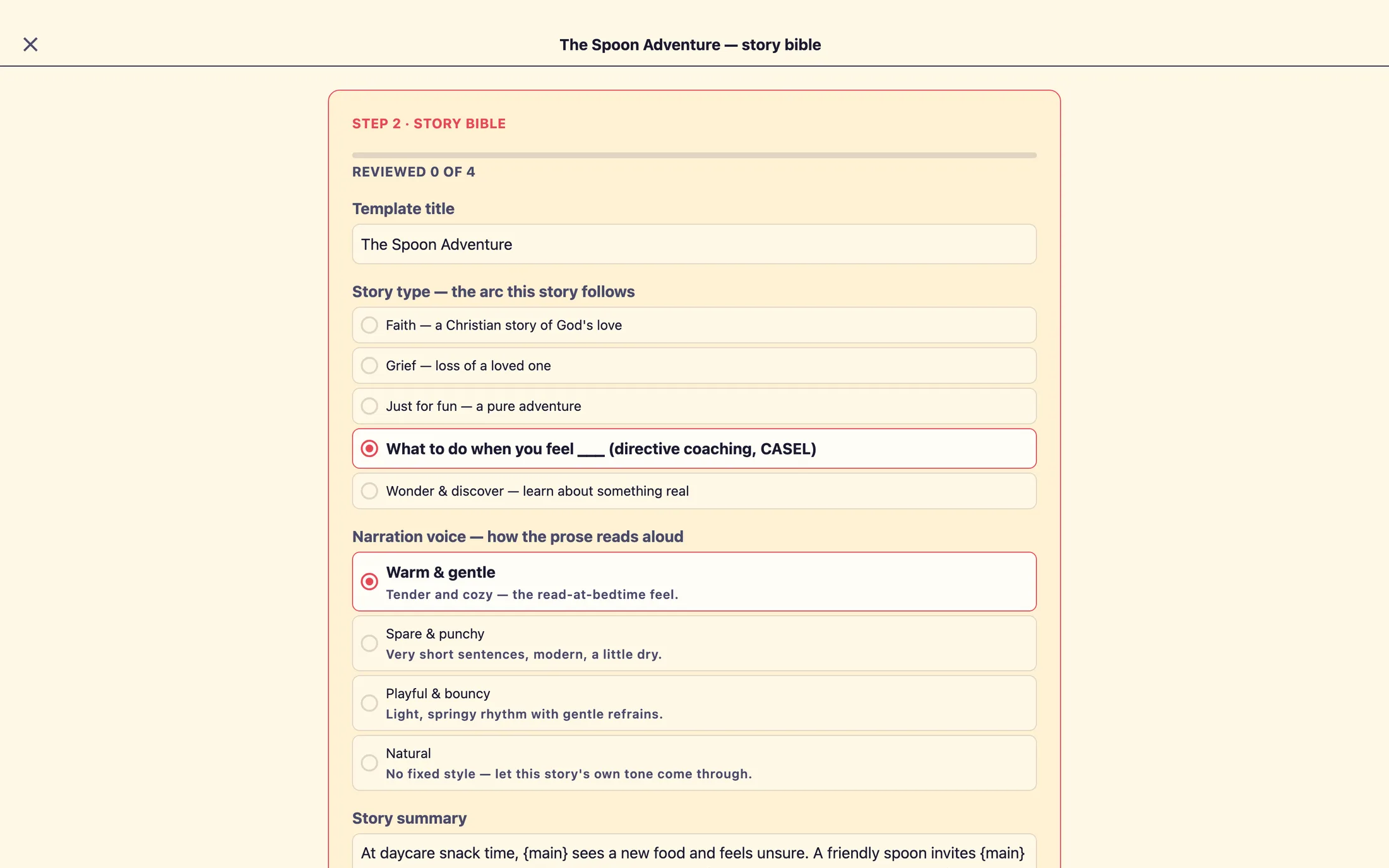
Read down the page from the top. The first fields set the shape and feel of the whole book.
Template title, the name of your storybook. Edit it to whatever you would like families to see.Story type, the arc this story follows, the kind of journey the story takes. One is chosen for you; you can pick a different one, and that changes the outline drafted next.Narration voice, how the prose reads aloud, how the words sound when read to a child.Story summary, two to four sentences describing what happens from beginning to end. Read this closely. It is the heart of the plan.
The four narration voices are Warm & gentle (a cozy, read-at-bedtime feel), Spare & punchy (short, modern sentences), Playful & bouncy (a light, springy rhythm), and Natural (no fixed style, the story's own tone). Pick the one that fits your book. You will also get to read a few sample lines written in this voice in a quick step right after you approve, and pick the one that sounds most like your book, so this is a first choice, not your last word.
The child outfit block
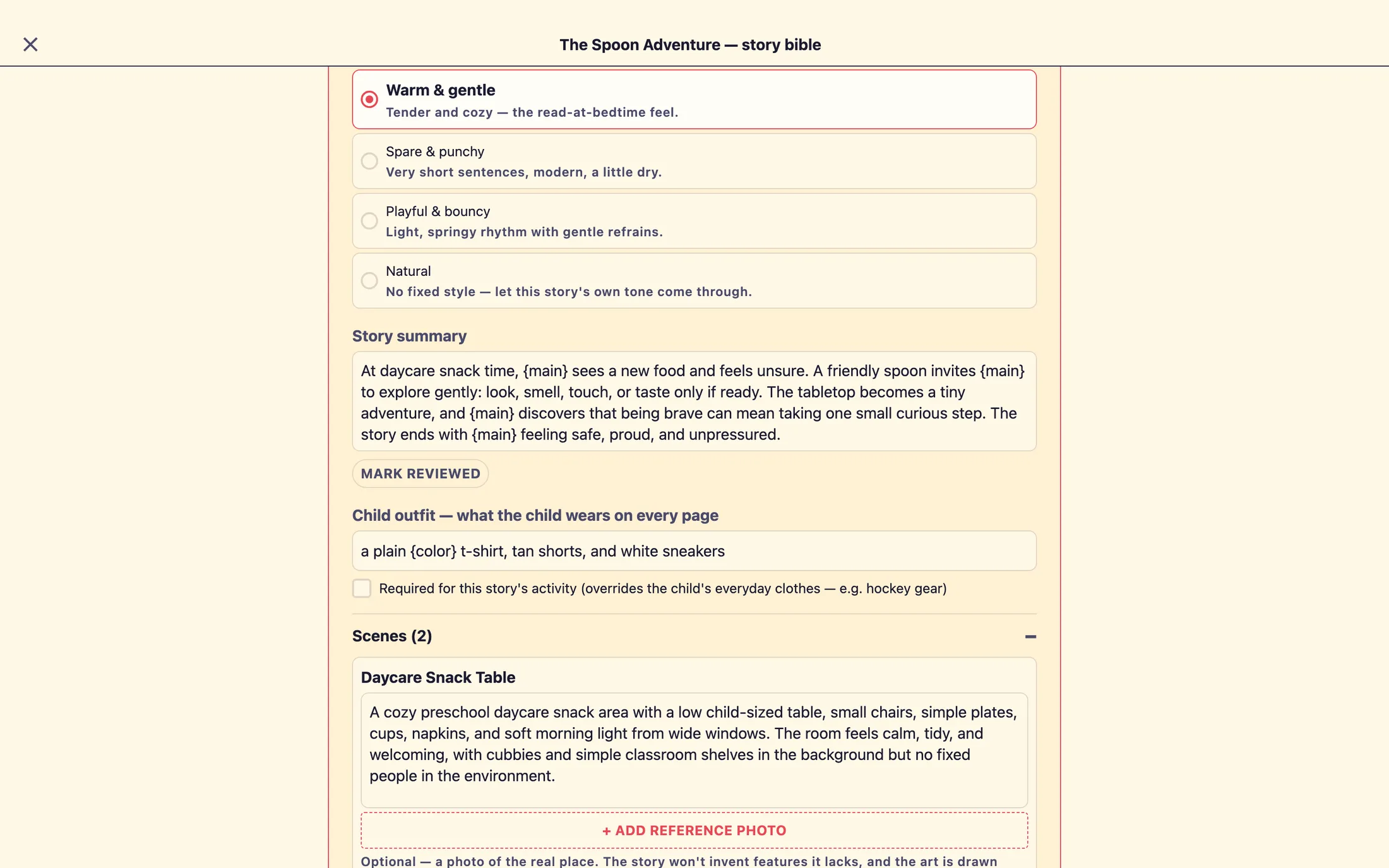
Next is Child outfit, what the child wears on every page. Every family personalizes this book with their own child, and this is the clothing that child wears throughout the story. For most stories you can leave the everyday clothes as drafted.
If your story needs a special costume, say a sports uniform or a firefighter's coat, tick Required for this story's activity (overrides the child's everyday clothes, e.g. hockey gear). A hint then explains how to add a color that fills in with each child's own clothing color, plus a Fallback color when no photo, e.g. blue box for children who have no photo yet.
Review the Cast
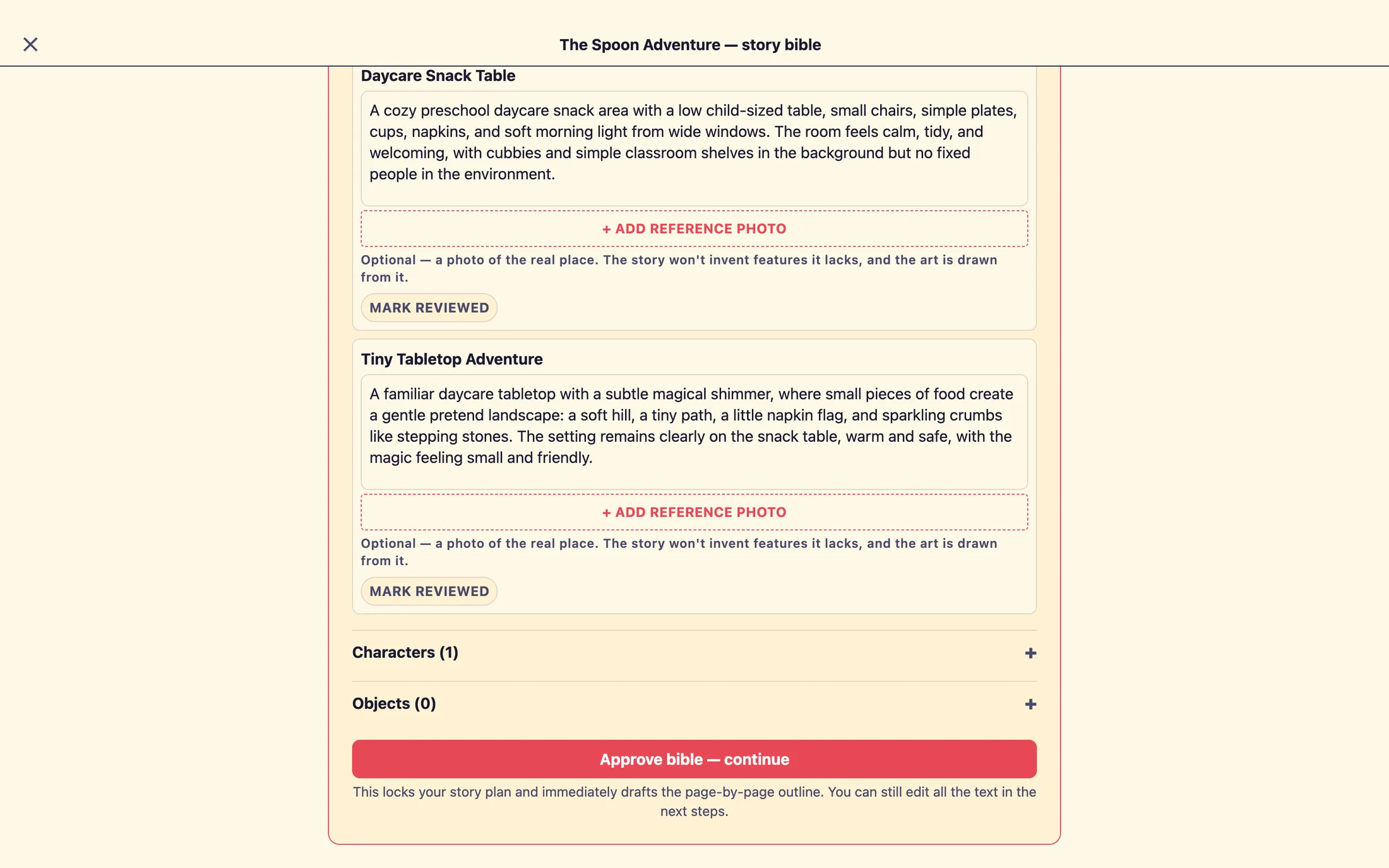
Below the outfit are three sections that make up the Cast: Scenes (N), Characters (N), and Objects (N), where N is how many of each are planned. Tap a heading to open it, one opens at a time, and Scenes starts open. An empty section reads None planned.
Each item has a name and a description box. Read every description and adjust it so it matches what you have in mind, this is exactly what that scene, character, or object is illustrated from later, at the Cast art step. The more true-to-life the description, the closer the art will land.
Attach a reference photo (optional)
Under any scene, character, or object you can click + Add reference photo. This is optional, but it is powerful. If you have a real photo of a place, a supporting person, or a special object, add it and the story stays true to it, right down to details the real thing lacks. That photo also becomes the source for that item's illustration.
- Click
+ Add reference photounder the item and choose an image file. - Wait a few seconds while the studio reads the photo, you will see a small spinner with
Reading your photo…. - When it finishes, a thumbnail appears with
tap to enlargeunder it and a green line confirming what was seen. - To swap or take it off, click
Remove. If reading the photo doesn't work, nothing gets attached, just try again.
Mark each item as you go
The summary and every Cast item has a small pill reading Mark reviewed. Tap it and it turns green to ✓ Looks good, with a green edge on the item, and the Reviewed X of Y bar ticks up. It is a personal checklist so you can see what you have looked at.
Approve the Story World
When everything reads the way you want, scroll to the bottom and click Approve bible, continue. The button shows Saving… for a moment while it locks your plan.
This is a one-way gate. Once you approve, the Story World locks and cannot be reopened or edited, there is no back button or undo. Read the summary and every Cast description one more time before you click.
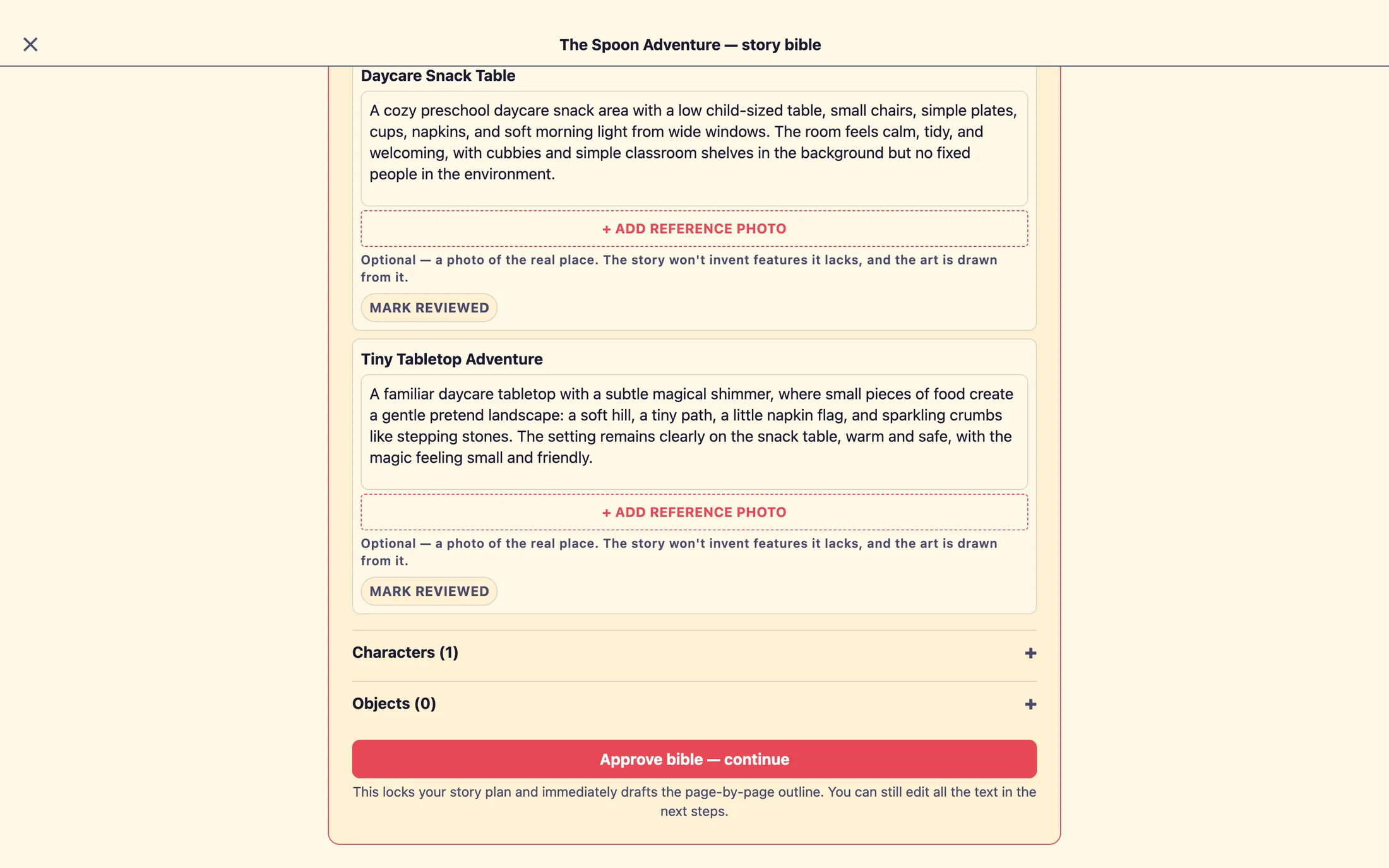
Approving does a few things at once. It locks the plan, it quietly begins illustrating your Cast in the background so the art is ready when you reach the Cast art step, and it starts drafting your storybook's outline. That Cast art takes a couple of minutes per item, so getting a head start now saves you waiting later.
One more step before the outline
That is the whole Story World review. You have set the title, the story type, the voice, the summary, and every scene, character, and object your storybook will be built from. Pick your voice next, and the studio will hand you the outline to review.
Still stuck? Email support@prestostories.com and we'll help.