
Signing in
How to reach your studio and sign in with a passwordless email code, plus what to do about resends, access-denied, and accepting an invitation.
Welcome. Before you can create storybooks, you'll sign into your studio. There's no password to remember here, you get a short code by email and type it in. This page walks you through reaching the studio, signing in, and accepting an invitation if you're brand new.
Where to find your studio
Your studio lives at your organization's own web address, the one your PrestoStories contact set up for you (it looks like yourorg.prestostories.com/admin). Bookmark it so it's easy to get back to. The studio is a website, so open it in a web browser.
Signing in with a code
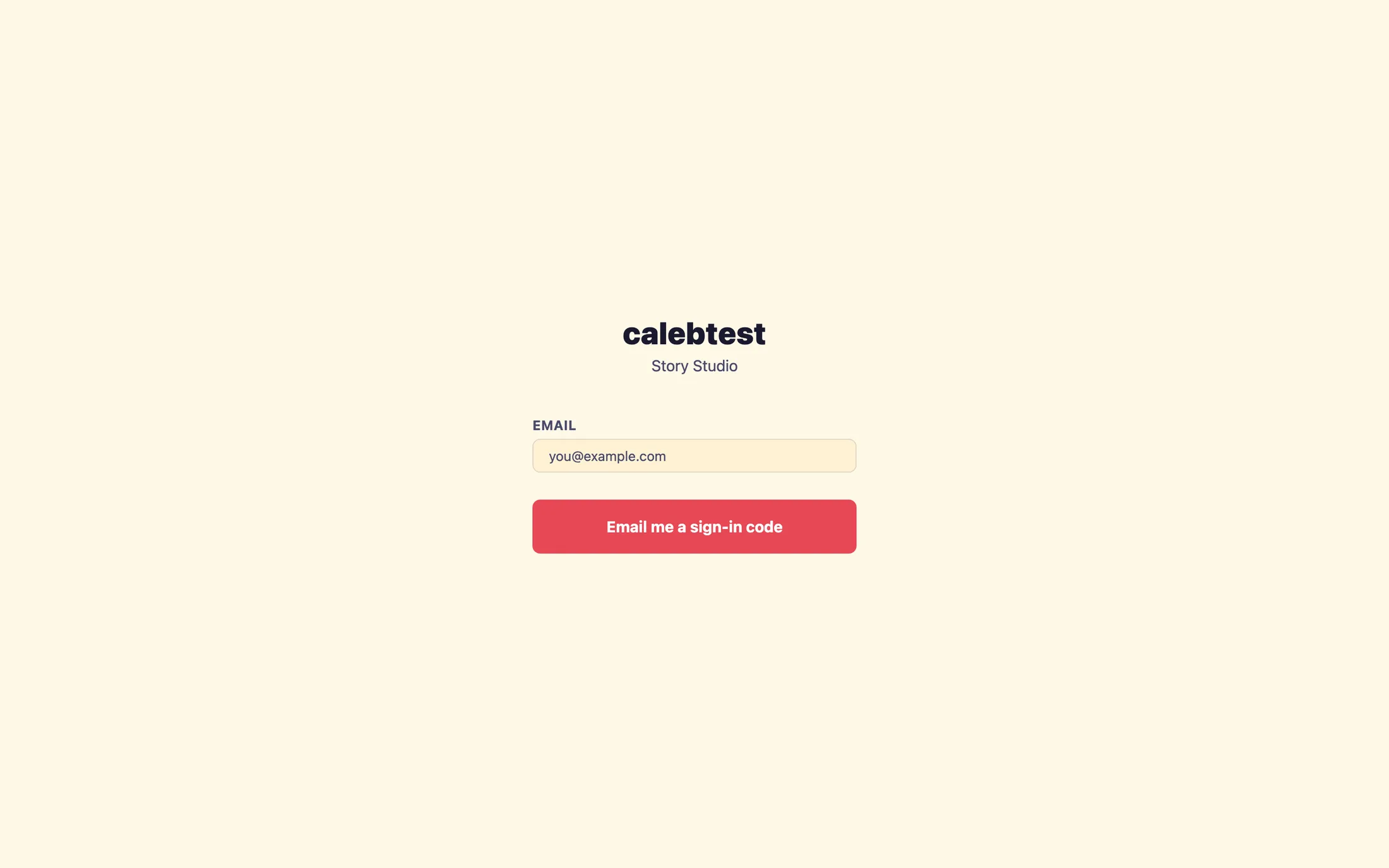
When you open the studio while signed out, you'll see a centered card with your organization's name and Story Studio underneath. Signing in takes a moment:
- Type your email into the
Emailfield (the one your invitation was sent to), then clickEmail me a sign-in code. - Check your inbox for a 6-digit code. It arrives within a minute or two, you can leave the tab open while you wait.
- Back in the studio, type the 6 digits into the code field, then click
Verify & sign in. - That's it, you land on your dashboard, headed with your organization's name and a “Your storybooks” panel.
Didn't get the code, or used the wrong email?
On the code screen you have two helpers right below the Verify & sign in button:
Resend code, sends a fresh code to the same email. Use this if the first one didn't arrive (also check your spam folder).Use a different email, takes you back to the email step so you can try another address.
If a code never shows up, the most common cause is a typo in your email. The studio only sends codes to addresses that already have an account, and it won't tell you an address is wrong, it just says it couldn't send a code and reminds you to check that you've been invited. Double-check the spelling and try Use a different email.
"You don’t have access to this studio"
Sometimes you'll sign in successfully but land on a page titled You don’t have access to this studio instead of your dashboard. This means your sign-in worked, but the account you used isn't a member of this particular organization yet. It's a membership issue, not a password problem.
You have two buttons here:
I was just invited, check again, if a teammate just added you (maybe in another tab or on another device), click this to re-check. Once your invitation is accepted, this drops you straight into the studio.Sign in with a different account, signs you out and returns to the sign-in screen, so you can try the exact email your invitation went to.
Accepting an invitation
Your very first time in, you'll start from the invitation email rather than the sign-in screen. The email contains a one-click link. Click it and, in most cases, you'll be signed in and dropped right into the studio with nothing to type.
If that one-click link has expired or was already used, the page falls back to the code flow, the same idea as signing in:
- On the
Joincard, enter the email, it must be the exact address your invitation was sent to, and clickEmail me a sign-in code. - Check your inbox for the 6-digit code.
- Type the code and click
Verify & accept. You'll be forwarded into the studio.
That's all it takes
Once you're in, you'll see your dashboard, headed with your organization's name, as your home base for creating and publishing storybooks. From here you can start your first storybook, invite teammates, and set up your storefront. Whenever you come back, just reopen your organization's address and sign in again with a fresh code.
Still stuck? Email support@prestostories.com and we'll help.