
Story credits
What story credits are, where your balance shows on the Dashboard, how owners top up, and what to do when you run low.
Story credits cover the work of building your storybooks, drafting the outline and words, and illustrating the cover and pages. This page explains where your balance lives, how to top it up, and what happens if you run low.
What story credits are
A storybook takes real work to build. As you author one, the studio drafts its outline, writes the page text, and illustrates a cover plus ten story pages. Story credits cover all of that. Think of your balance like a prepaid tab: it goes down a little as your stories get drafted and illustrated, and you top it back up whenever you like.
Where your balance shows
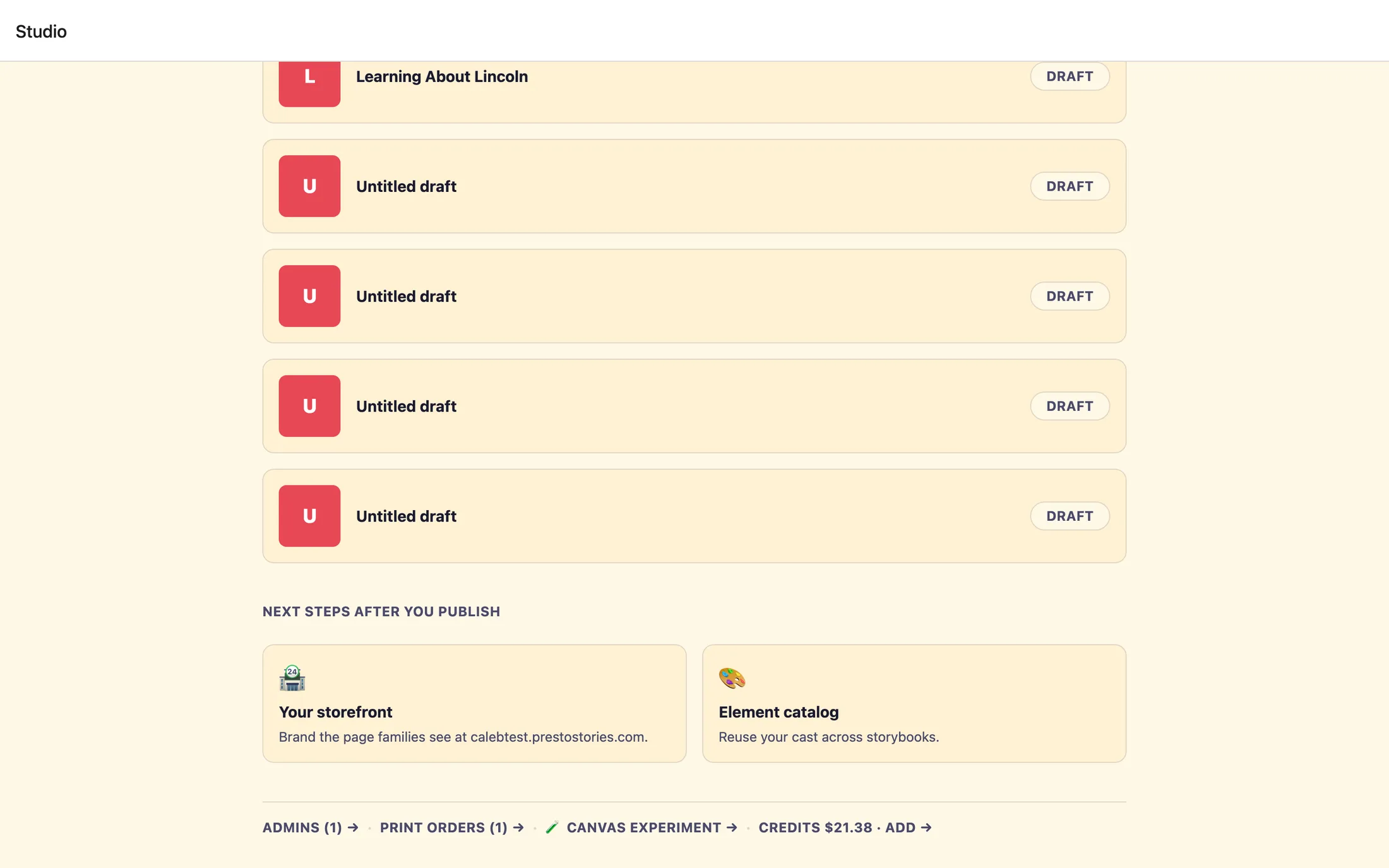
Your balance lives on the Dashboard, the home screen of your studio, titled Studio. Look at the quiet row of links along the bottom (the same row that holds Admins (N) → and Print orders (N) →). At the end of it you'll see your credits, shown as a dollar figure like Credits $42.00.
The balance refreshes every time you return to the Dashboard, so after a stretch of authoring you'll see it update on its own, no reload needed.
Adding credits (owners)
Your team has two roles: owner and editor. Only owners can top up the balance. If you're an owner, you'll see an Add → link right next to your credit figure. Here's how a top-up works.
- On the Dashboard, click
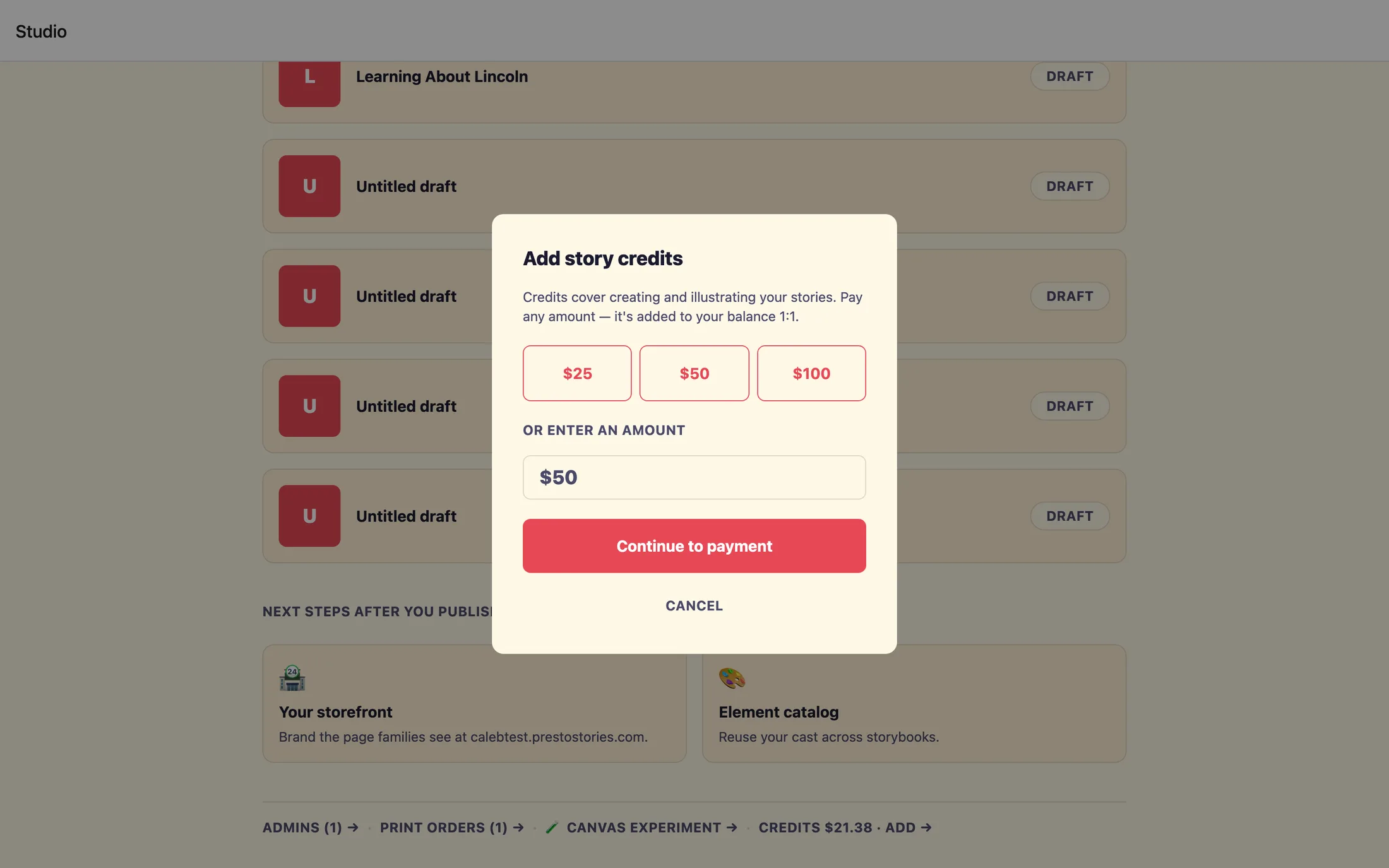
Add →next to your credit balance. - A window titled
Add story creditsopens. It explains that credits cover creating and illustrating your stories, and that whatever you pay is added to your balance one-for-one. - Pick a quick amount, the buttons are $25, $50, and $100, or type your own in the
Or enter an amountfield. Any amount from $10 to $1000 works. - Click
Continue to payment. You'll be sent to a secure Stripe checkout page to pay by card. - After you pay, you're brought back to the Dashboard with a banner letting you know your payment came through and your credits are being added.
If you're an editor
Editors can see the balance but can't add to it, you'll see your credit figure on the Dashboard, but with no Add → link beside it. That's expected. If credits are running low, just ask one of your team's owners to top up from their Dashboard.
Running out of credits
If your balance runs out while you're authoring, the studio lets you know that your organization is out of story credits before any more drafting or illustrating happens. Your work in progress is safe, nothing is lost, and you can pick right back up once the balance is topped up.
- If you're an owner, top up yourself: go to the Dashboard and use
Add →→Add story creditsas described above. - If you're an editor, ask an owner on your team to add credits. Once they do, you can continue where you left off.
Still stuck? Email support@prestostories.com and we'll help.