
6. Render & approve the Page Art
Render every page of your storybook, check the child-highlight, request any changes, and approve the Page Art to move on to publishing.
This is the moment your storybook comes to life. You've approved the Cast Art, the reference pictures the studio draws from. Now you'll render the Page Art: the full-page illustration for every page. You'll watch the pages arrive, check that the right child is highlighted on each one, fix anything that looks off, and then approve them all. Take your time here, reviewing carefully now saves you a re-do later.
Start the render
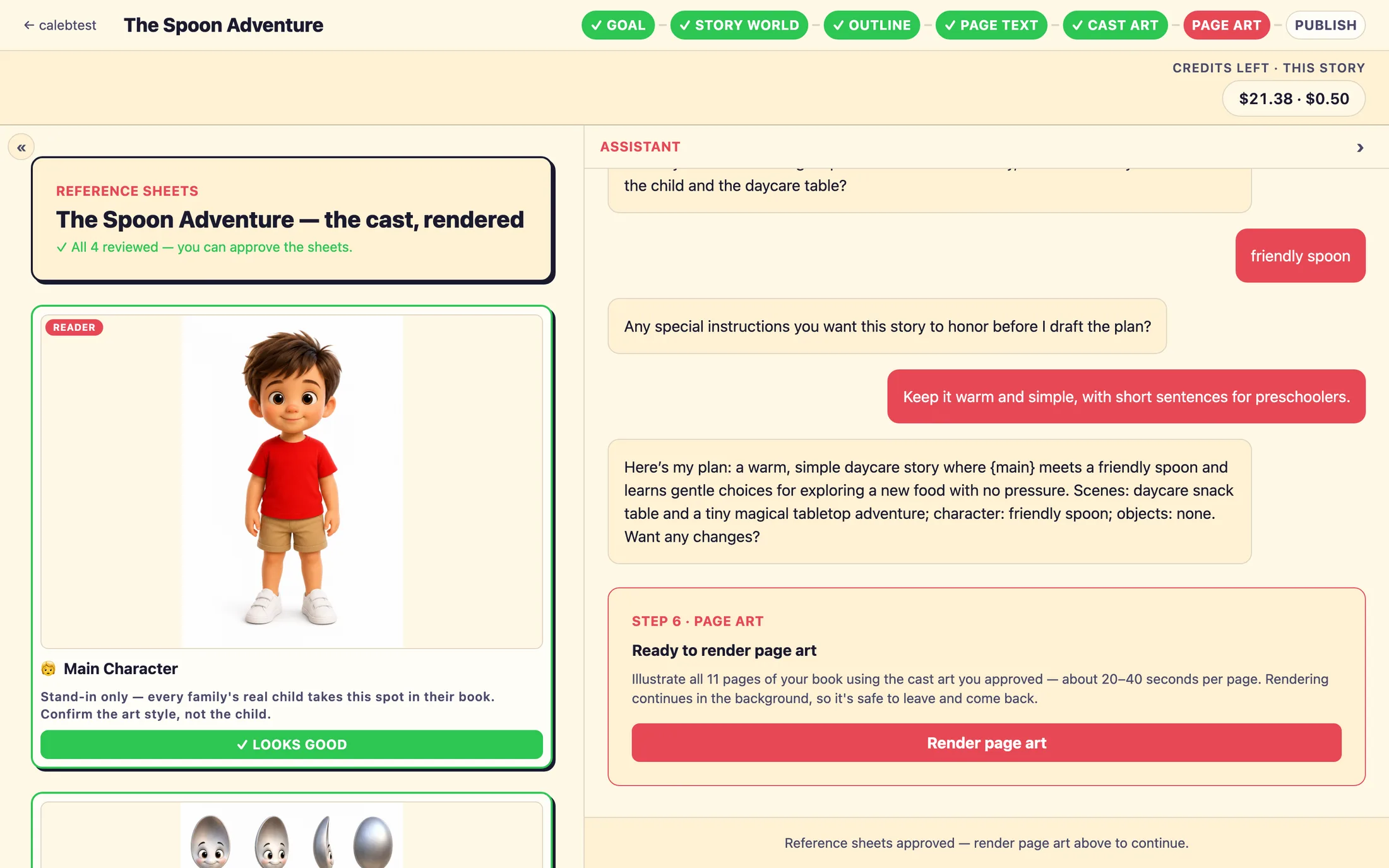
When your Cast Art is approved, the chat dock shows a card headed STEP 6 · PAGE ART titled Ready to render page art. It explains that every page will be illustrated using the cast art you just approved. When you're ready, click Render page art.
The button spins for a few seconds while it lines up the work, then the card switches to a progress view. That's your cue that rendering has begun. You don't have to sit and wait, the pages keep rendering even if you close the tab and come back later.
Watch the pages come in
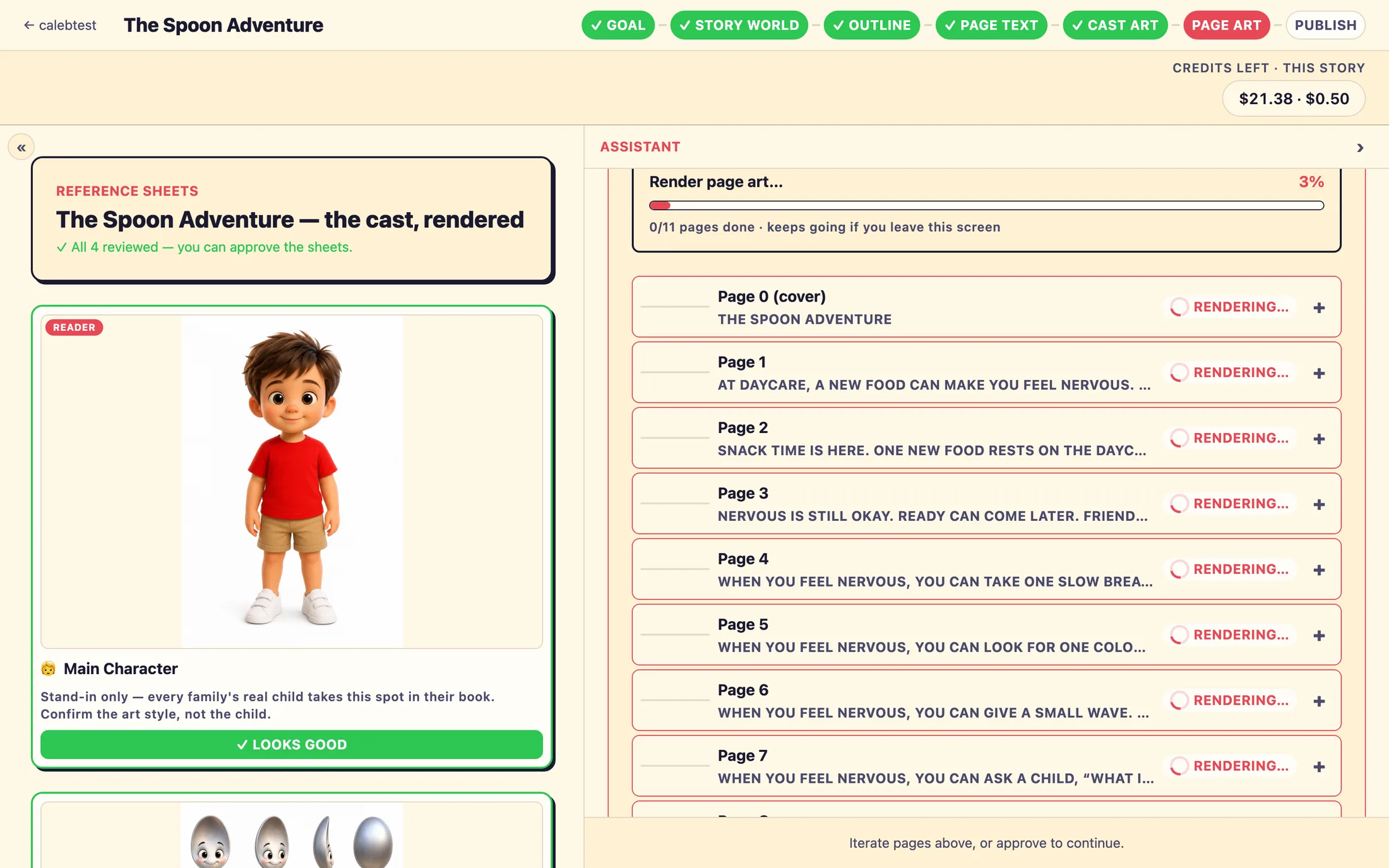
As pages render, the card header shows a running count of how many are done and how many are still pending, and a progress bar labeled Render page art… tells you how far along the whole book is. Each page starts as a soft shimmering placeholder, with a small rendering… chip, and then the finished illustration drops into place.
Timing: each page takes roughly 20 to 40 seconds, so the full cover-and-ten-pages book usually finishes in a few minutes. This is a good moment to step away and grab a coffee, the progress bar keeps going while you're gone, and everything will be waiting when you return.
Look at each page
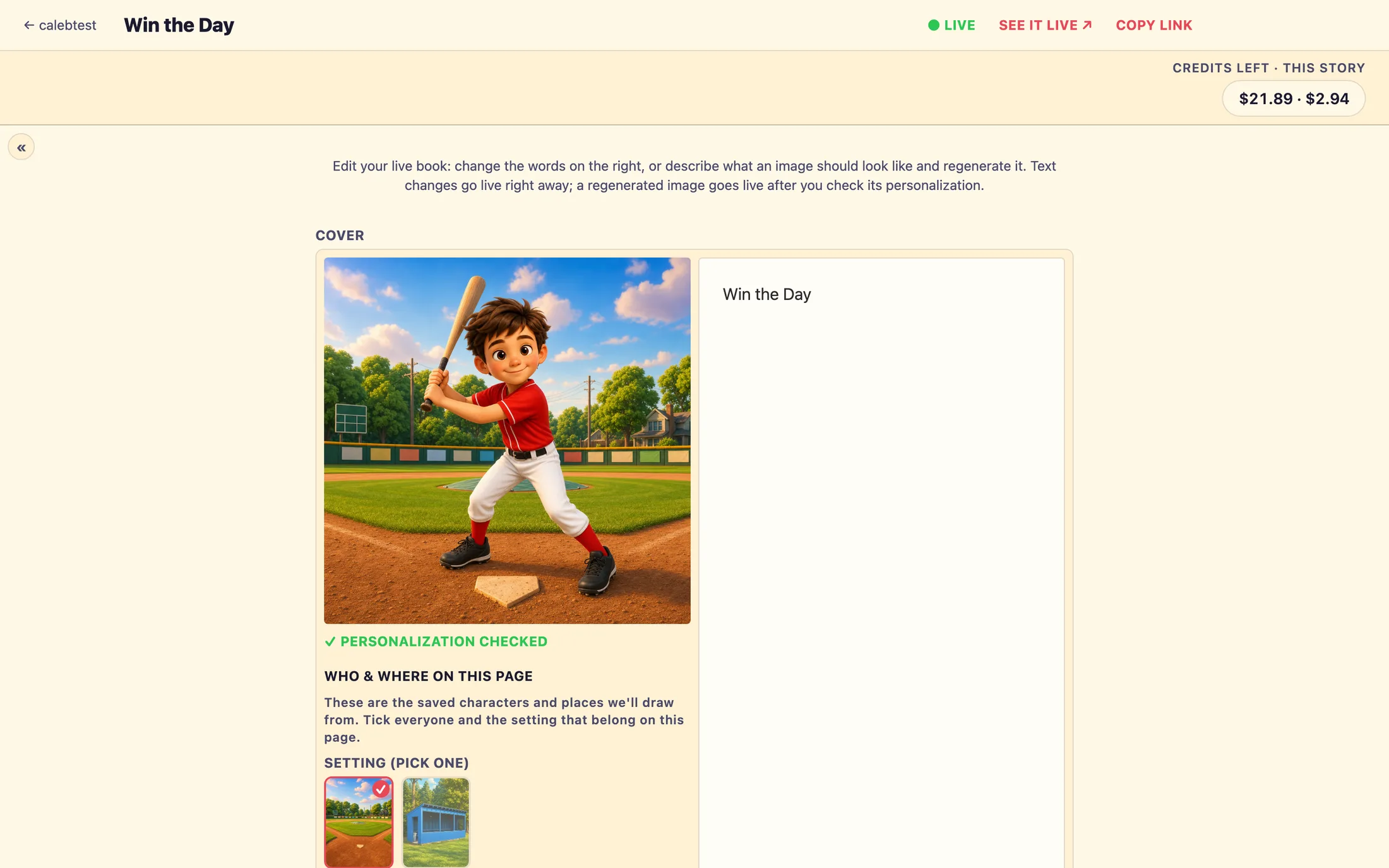
Once a page has art, tap its thumbnail to open the page sheet: the picture large, every take of it underneath, and the change panel beside it. This is where you look closely and, if needed, ask for a change. While you're reviewing, remember you're looking at a fixed stand-in child named Leo, age 7, a placeholder. Every family who picks this storybook will see their own child in his place, so you're checking the art style and the scene, not the specific face.
Takes
Every time a page is drawn, the previous picture is kept. The strip under the big picture shows each take oldest to newest, captioned with what it was asked for, v1 · first draft, v2 · move Ms. Dee closer, v3 · brighter morning light · current. Nothing is ever thrown away, so you can try a change freely and go back if the earlier one was better.
- Tap a take to see it large.
Compare with current, puts the take you're looking at beside the page's current picture.Use this one, makes that take the page image on the spot. Nothing is redrawn; it's an instant swap, and the highlight check is prepared for it if it hasn't been already.
Check the child-highlight
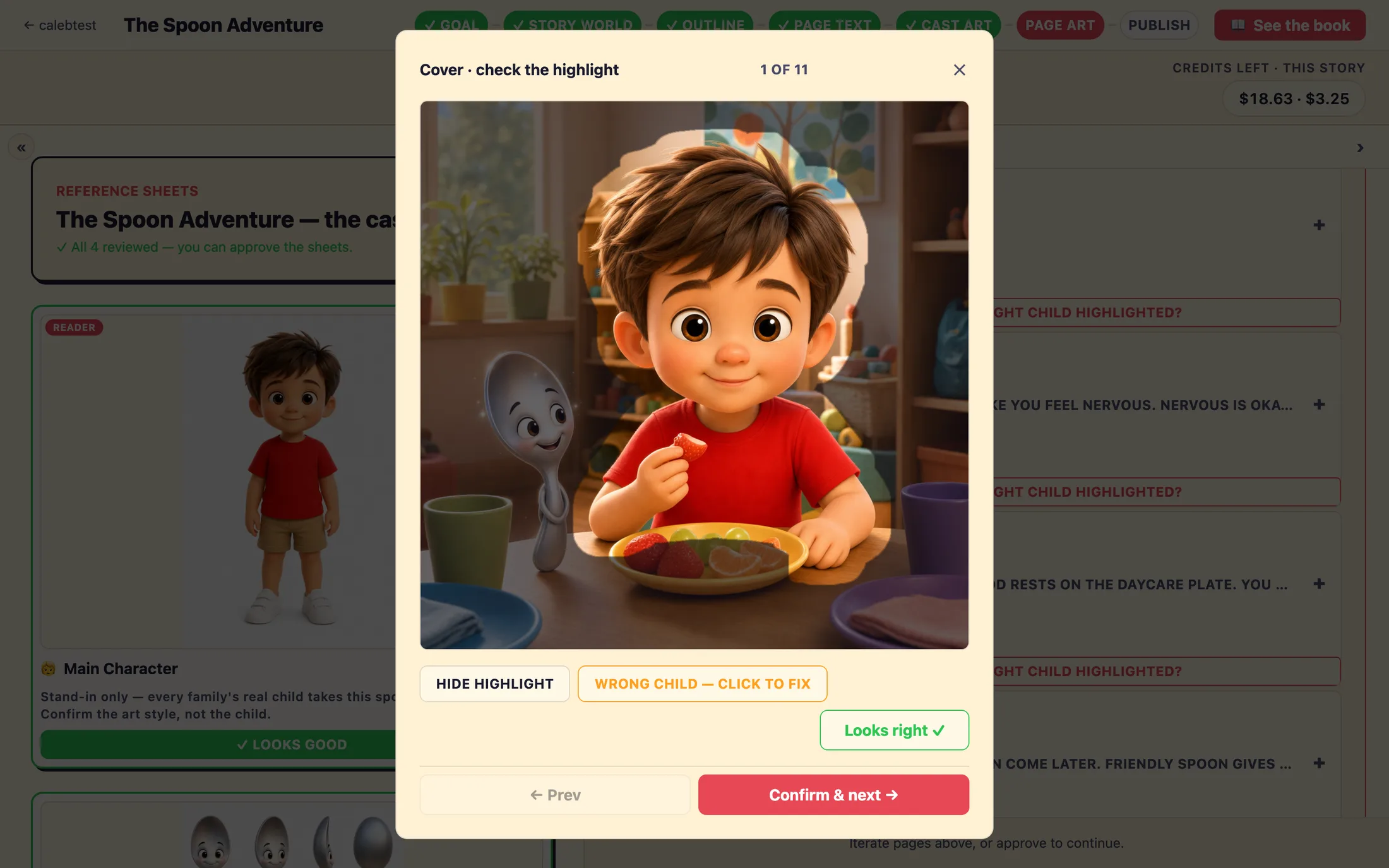
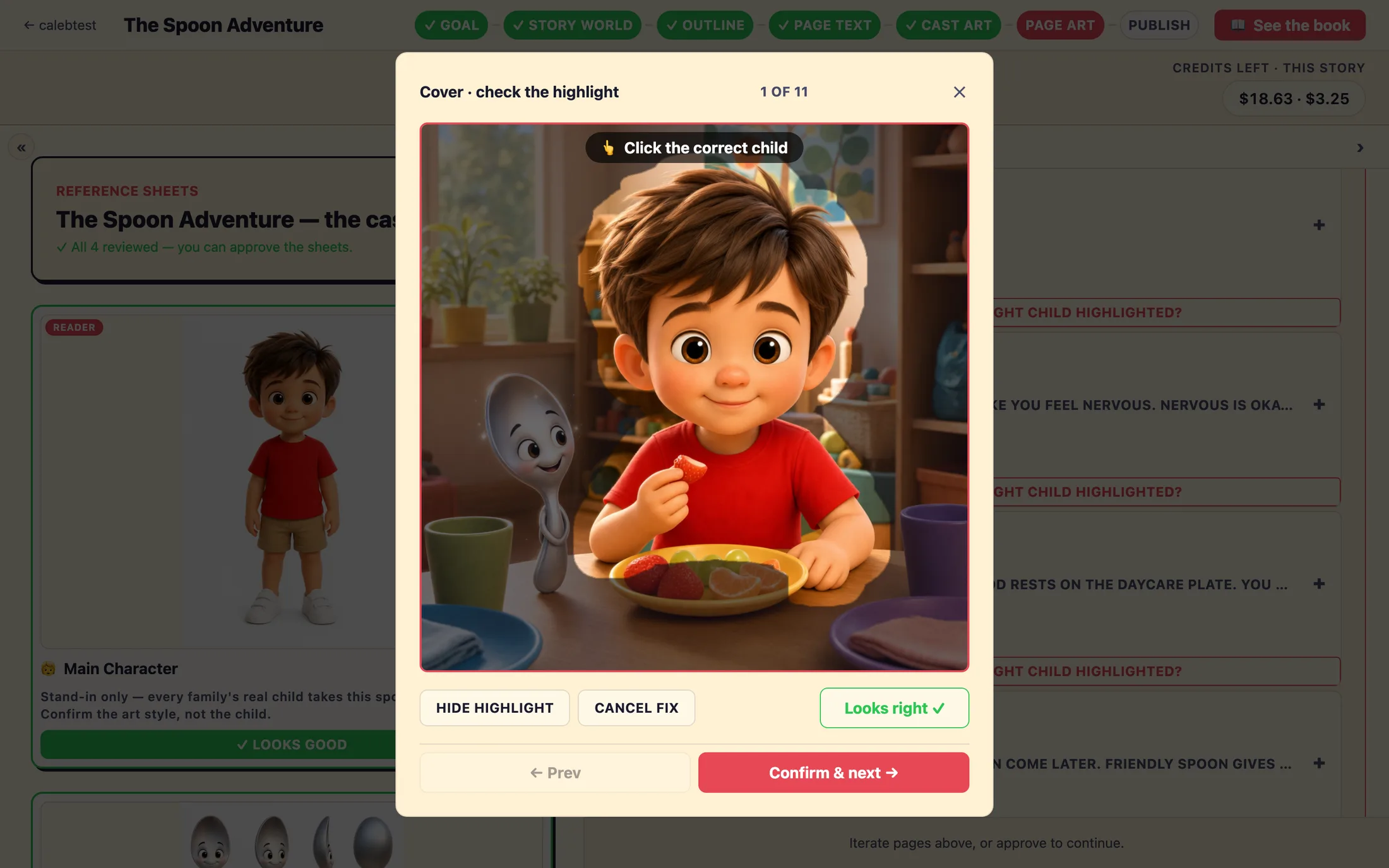
Under each finished page you'll see a highlight check, a button reading ◎ Review mask, is the right child highlighted?. Open it and the page dims everywhere except the child, who glows in a soft spotlight. This spotlight marks the exact figure that each family's own child will replace. Getting it right here is what keeps every family's book looking like their child.
If the correct child is spotlighted, click Looks right ✓. It flips to a confirmed state. That's all a page needs at this step.
If the wrong figure is highlighted
- In the highlight check, click
Wrong child, click to fix. - A hint appears:
👆 Click the correct child. Click directly on the right figure in the picture. - The studio re-finds the child around where you clicked, this takes a few seconds. The new highlight then appears on its own.
Sometimes, on a busy or crowded scene, the child can't be located automatically. When that happens the button changes to ◎ Couldn't auto-find the character, tap to pick them. Open it and simply click the child in the picture, the hint reads 👆 Click the child to highlight them, and one click is all it needs. There's no automatic retry on purpose; a single click is the most reliable fix.
The quality check
Under the highlight check, each finished page also carries a Quality check line. The studio looks over every page as it lands, for someone missing, an extra person, an odd hand or limb, stray text in the picture, a malformed prop, or a character who doesn't look like their cast art, and reads Checking this page… while it looks. Most pages come back as ✓ Quality check: nothing found. When something looks off, the line turns into a short flag: what it noticed, in plain words, plus a sentence describing exactly where. It's a second pair of eyes, not a gate, nothing here stops you approving or publishing.
🛠 Fix & re-render, adjusts just this page with the flag as the change note, keeping everything else (characters, setting, composition, style) exactly as it is. The request shows on the page row while the new take is on its way, and the new picture is checked again when it lands.Looks fine to me, you've looked and disagree, or it doesn't matter for this page. The flag is kept on record but stops asking; the line reads✓ Quality check: flagged, you marked it fine.Re-check, look at the same picture again. Also theRetrywhen a check couldn't run (Couldn't check this page).
Request a change to a page
If a page needs adjusting, the change panel beside the picture starts with two paths. Adjust this picture (the default) keeps the picture you're looking at and changes only what you ask, move a character closer, add a bookshelf, brighten the morning light. Start fresh draws the page again from its design, with no previous picture attached, for when you'd rather see a different take altogether.
Under the paths are chips for the Light, the Weather, and the Camera (shot and angle), the page's current choices come pre-selected, then the Who & where on this page picker: the saved reference pictures the page can draw from, the Setting (pick one), Who's in this page, and Props. Tick the setting and everyone who belongs on this page; if a page ever shows someone it shouldn't, this is where you correct it. The main child chip is locked (marked always) and can't be removed, every page keeps the star of the story. Finish with the Anything else? box for anything the chips don't cover, and click Draw it.
The panel folds into a pending tile at the end of the take strip that shows exactly what you asked for, and the sheet can be closed at any time, the drawing keeps going. When the new take lands, it slides in as the page image and the previous one stays in the strip.
Arrange the scene yourself
When a note in words isn't precise enough, you want the two friends closer together, the child larger and looking at the puppy, a wide shot instead of a close-up, tap 🎬 Arrange the scene in the change panel. The scene composer opens over the page. It's the same composer offered during the page-text step, so anything you arranged there is already in place.
The canvas fills the left of the screen. Drag anyone to place them; pull a corner handle to make them bigger or smaller, size doubles as distance, so a small figure reads as far away and a large one as up close. The panel on the right has three tabs, in this order, + Add, Page, and Selected (once you tap a figure, that third tab shows the figure's name instead):
+ Add, who is on the page, drawn from your story world's characters, settings, and props. Tick to add, untick to remove. The child is always on; that tile can't be unticked. You can also add a few described extras (a crowd, a passing bus) that don't need reference art. Anything without reference art shows a pill readingno art yet, the render will improvise this one.Page, the whole picture: camera shot and angle, the light, the weather, where the words will sit (theWordschips:anywhere,top,bottom,left,right), and⧉ Copy page N's arrangementwhen a scene carries over from the page before.Selected, the figure you tapped: size and distance, which way they face, how they're framed, where they look, a pose, an expression, and their relationship to someone or something else on the page. Between people the verbs arelooks at,points to,faces,waves at,reaches toward,kneels beside,turns away from,holds hands with,hugs, andhigh-fives; toward a prop they areholds,carries,rides, andreads, ordescribe itin your own words.
The ⓘ render hears strip under the canvas (open by default; the header pill hides and shows it) spells out, in plain words, exactly what the studio will draw from, who is where and how big, who's looking at whom, the camera, the light. If that strip reads right, the picture will follow it. ↶ / ↷ (or ⌘Z / ⇧⌘Z) undo and redo, and Delete removes the selected figure.
When a change also affects what the page says, the studio may point that out and offer a suggested wording, with the choice to Update the text or Keep my text. Nothing in the words changes without your say-so.
Approve all the pages
The card's footer button guides you through the finish line. It stays disabled and reads Wait for pages to finish rendering… until every page is in, then Review every page first until you've confirmed each page's highlight. Once every page is rendered and every highlight is confirmed, it becomes Approve all pages, continue to publish. Click it to move on.
Want to see the whole thing as a book first? The header has a 📖 See the book button that opens a read-only, front-to-back preview, the cover, then every page, shown with the Leo stand-in. It's a lovely gut-check, and it doesn't change anything. Once you approve, you'll move to publishing, where you'll do one final read-through before your storybook goes live in your storefront catalog.
Still stuck? Email support@prestostories.com and we'll help.