
Your storefront
Brand the page families visit at your address, star your characters, go live, and print a scan-code flyer for parents.
Your storefront is the page families see when they visit your address at {slug}.prestostories.com. This is where you set your logo, color, and welcome line, pick which of your characters greet visitors, and, when you're ready, flip the switch to go live. You can also print a flyer with a scan code to hand out to parents. Everything here is pre-filled from the art you've already made, so most of the work is just choosing what you like.
Finding your storefront
Open the studio at your organization's address and you'll land on the Dashboard, titled Studio. Once you've started your first storybook, a 🏪 Your storefront card appears under Next steps after you publish. Tap it to open the storefront screen, titled Your storefront at the top.
The subtitle sums it up: this is what families see, and everything is pre-filled from your illustrated catalog. Change what you like, and your edits save automatically.
The "not live yet" state
When you first arrive, your page isn't live. You'll see an amber card headed Your page isn't live yet. Until you go live, anyone who visits your address sees a friendly "stories coming soon" page instead of your real one. That's on purpose, it gives you room to set things up before families arrive.
To go live you need at least one published storybook. The card shows a {n} templates published pill so you can see where you stand, and the 🚀 Go live button stays disabled until that count is at least one. If it's greyed out, head back and finish publishing a storybook first.
- Publish at least one storybook so the
{n} templates publishedpill reads one or more. - Set up your branding below, logo, color, welcome line, header picture, and star characters, so the page looks the way you want.
- Tap
🚀 Go live. It briefly showsGoing live…while it works. - Your page flips on, and the header now reads
● Live at {slug}.prestostories.com. Families can visit and start making stories.
Branding your page
Below the go-live area are the cards that control how your page looks. Each one is pre-filled with a sensible default, so you're editing, not starting from scratch.
Your logo, upload an image of your logo. If you skip it, your organization's name shows in its place. UseUpload logoto add one, orReplaceandRemoveto change one you've already added.Accent color, the color used for buttons and highlights on your page. Pick from the swatches.Welcome line, your headline greeting. Choose one of the ready-made chips built from your organization's name, or write your own (up to 90 characters).Header picture, the big picture behind your star characters, usually your building or a favorite place. It's a grid of the illustrated scenes from your Element Catalog. Tap one to select it; the chosen scene shows✓ Header. If you don't have any illustrated scenes yet, the grid says so, they appear here as you make more stories.
Star characters (the "stickers")
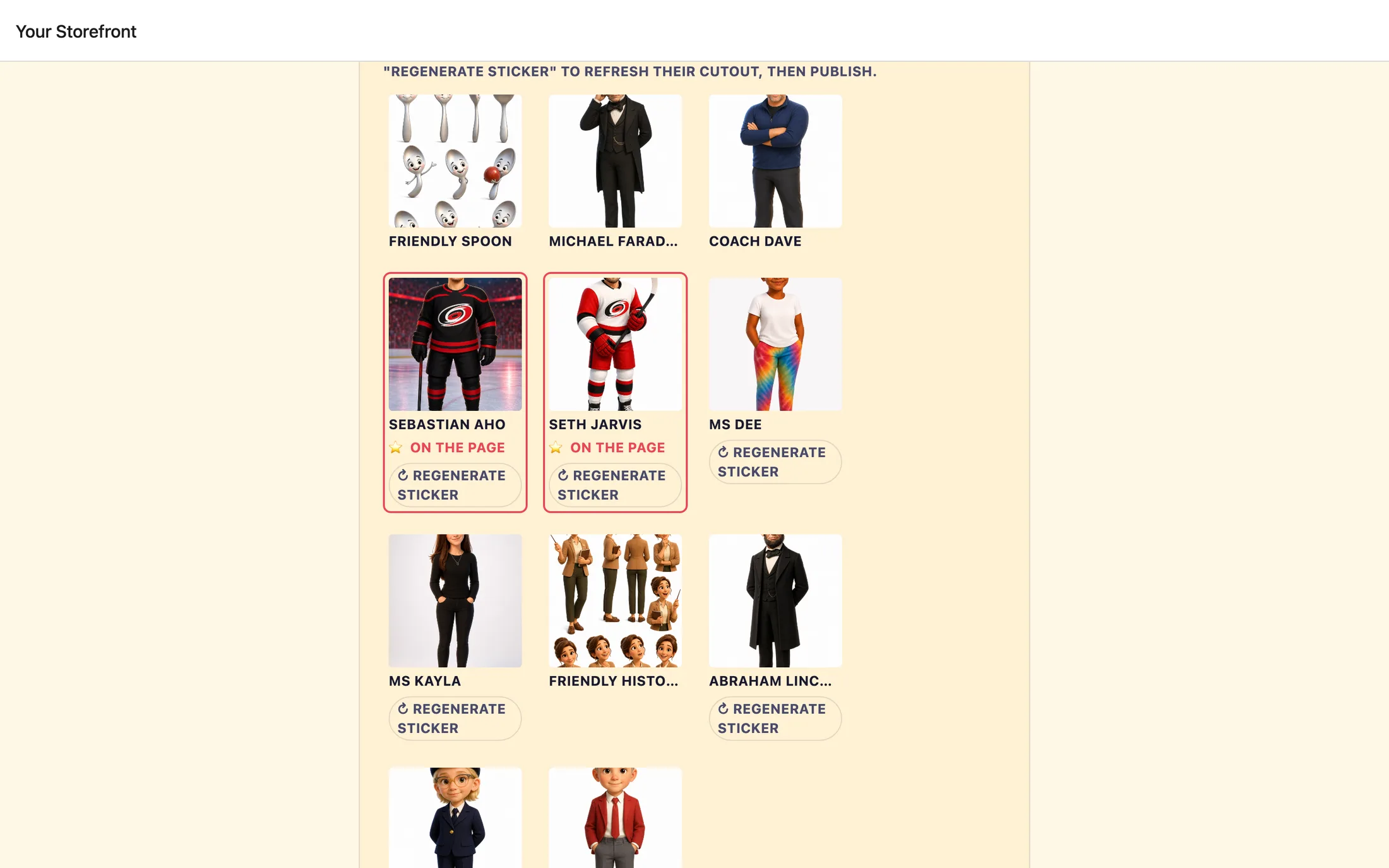
The ⭐ Star characters (up to 3) card lets you pick which of your characters welcome visitors on the page. These become friendly standing figures, think of them as stickers cut out from your character art. It's a grid of the characters from your Element Catalog. Tap a character to star them.
The first time you star someone, their reference sheet is turned into a welcoming cutout sticker. This takes about a minute, roughly 60 to 90 seconds, and the whole star grid is locked while it works, showing Making their sticker…. Just wait it out; it only happens once per character. A character who's on your page shows ⭐ On the page.
Draft vs. live: publishing your changes
Once your page is live, your edits behave a little differently. Everything you change, logo, color, welcome line, header, stars, updates a draft version of your page. Families keep seeing the last version you published until you choose to publish again. This lets you tinker freely without anything half-finished showing up publicly.
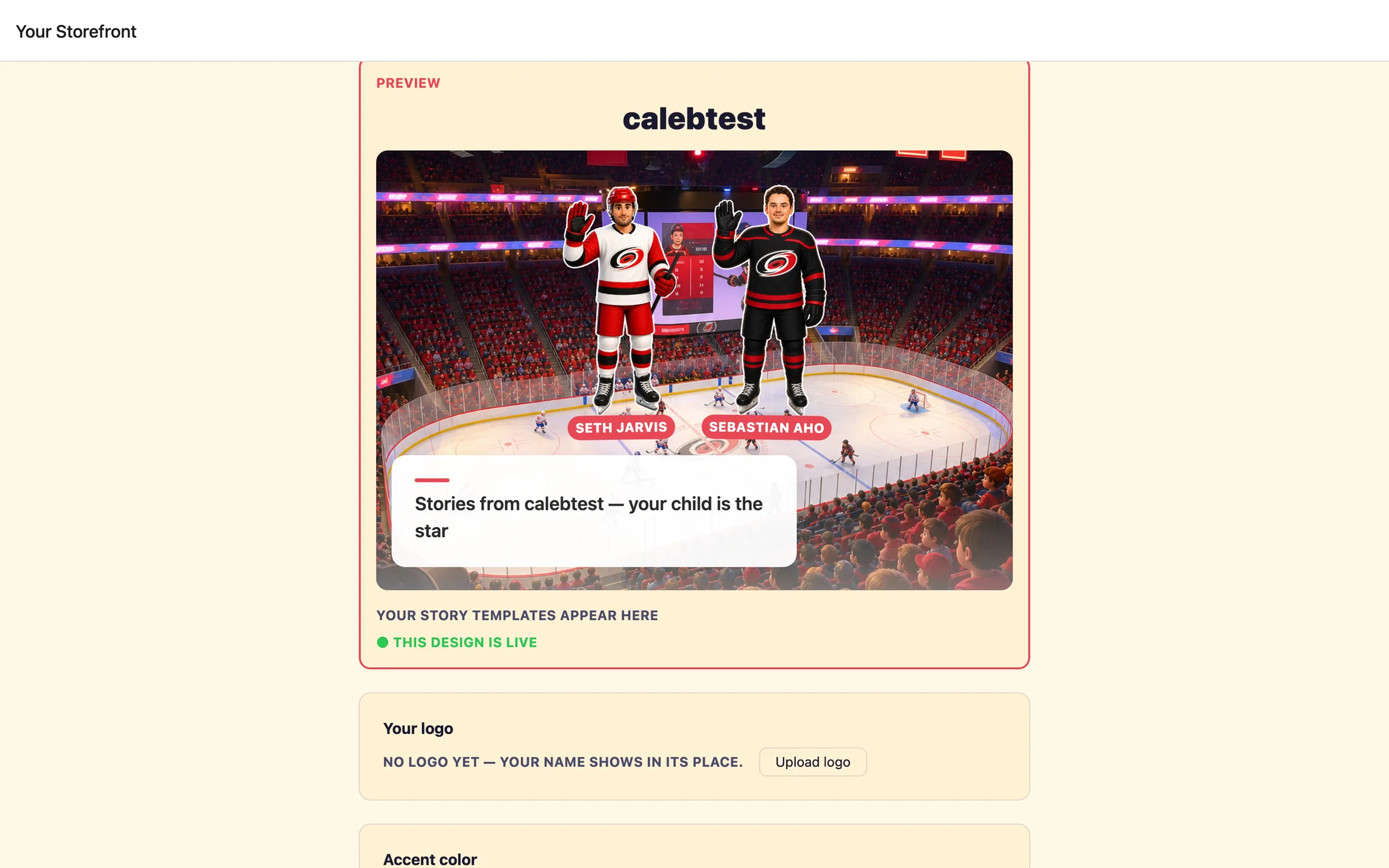
The Preview card shows your page as it will look. When your draft differs from what's live, a bar appears reading Preview shows your DRAFT, families still see the published page. alongside a Publish to live button. Tap it, it shows Publishing… for a moment, and your draft becomes the page families see. When the draft and live page match, the card simply reads ● This design is live.
Printing a flyer for families
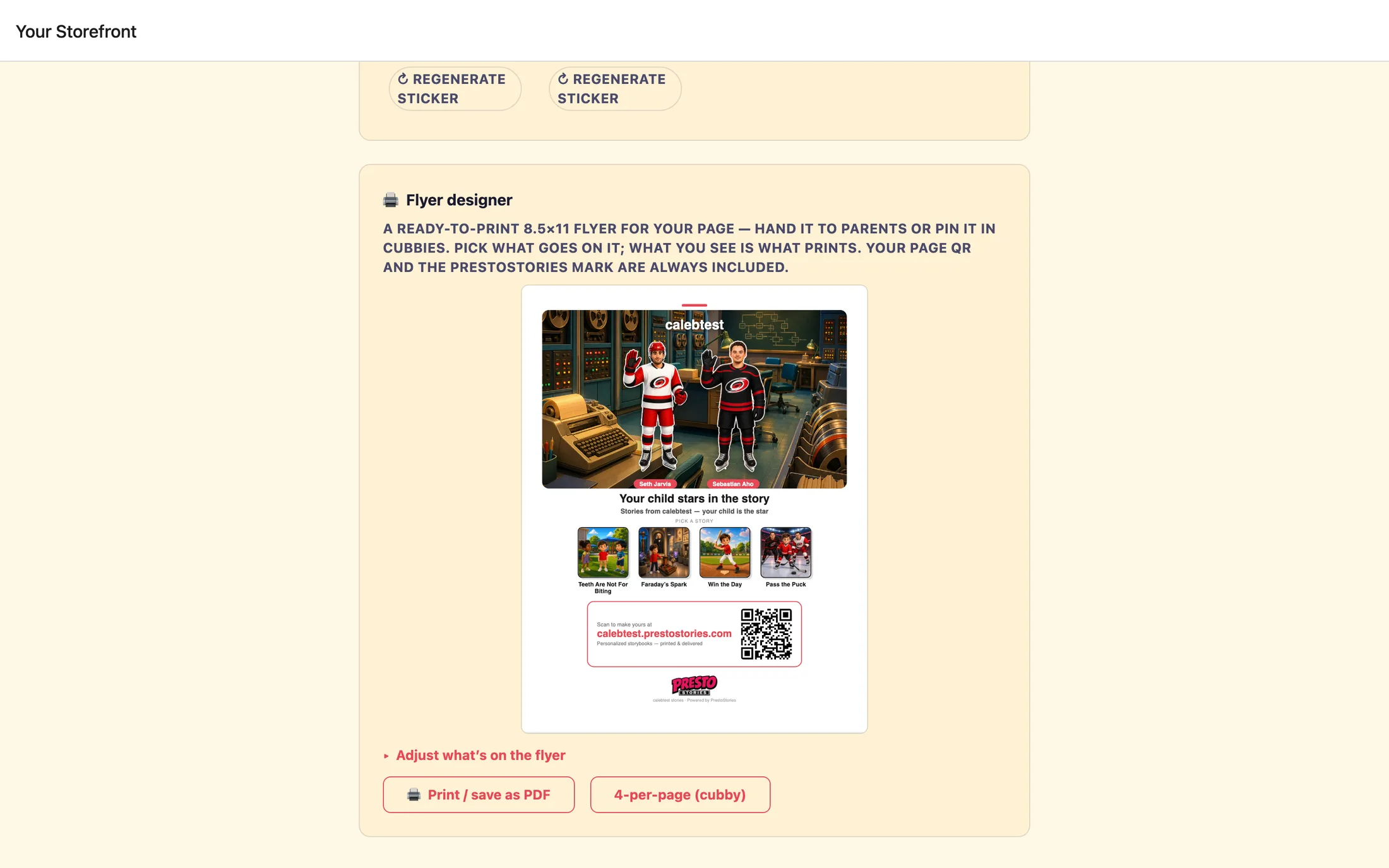
Scroll to the 🖨 Flyer designer card to make a ready-to-print flyer that points families to your page. It's a standard 8.5×11 sheet you can hand to parents or pin in cubbies. Your page's scan code and the PrestoStories mark are always included, so families can scan and start making a book on the spot.
A live preview shows exactly what will print. The flyer starts from your storefront's own choices, your header picture, your starred characters, and your four newest published books, so it looks right without any setup. To change what's on it, open Adjust what's on the flyer.
- Header image, pick which scene sits behind your stars (
✓ Header), and fine-tune it withHeader size(Small, Medium, Large) andHeader crop (focal point)(Top, Center, Bottom). Star characters (up to 3), choose who appears (⭐ On flyer), then setStar placement(Left, Center, Right) andStar size(Small, Medium, Large). Starring a character here makes their sticker on demand, just like on your page.Featured stories (up to 4), pick which published book covers to show (✓ Featured). If you haven't published any yet, the grid tells you a published story can be featured here.
When it looks good, use one of the two buttons at the bottom. 🖨 Print / save as PDF produces one full-page handout. 4-per-page (cubby) tiles four smaller flyers on a single sheet with dashed cut lines, handy for slipping one into each child's cubby. Either button opens the flyer in a new tab and brings up your browser's print dialog, where you can print directly or choose "Save as PDF."
Changes you make in the flyer designer only affect the flyer, they never change your live page. Tweak the flyer as much as you like without worrying about your storefront.
Still stuck? Email support@prestostories.com and we'll help.