
4. Approve the Page Text
Read your storybook page by page, shape the words each family will read, ask for alternate wording, and approve the text before the art is drawn.
This is the step where you read your storybook the way a family will, page by page, front to back, and shape the words before any art is drawn. Once the Outline (your story's beat-by-beat plan) is approved and you've picked your story's voice, the words for every page are drafted for you. Your job now is to read them, tweak anything that feels off, and approve. Take your time here: this is the text families will read in the finished book.
How you get here
Just after you approve the story world (the earlier step), a short 🎙 Pick your story's voice step appears, it holds up the whole flow, including the Outline review, until you finish it. It isn't skippable, and the page text won't start drafting until it's done. Once you have, a draft of every page is written for you. You'll see a progress card in the chat dock reading Drafting all 11 spreads… (the number matches your story's beats). This takes a minute or two. You can leave and come back, if you reload the page, the progress picks up where it left off, so there's no need to start it over.
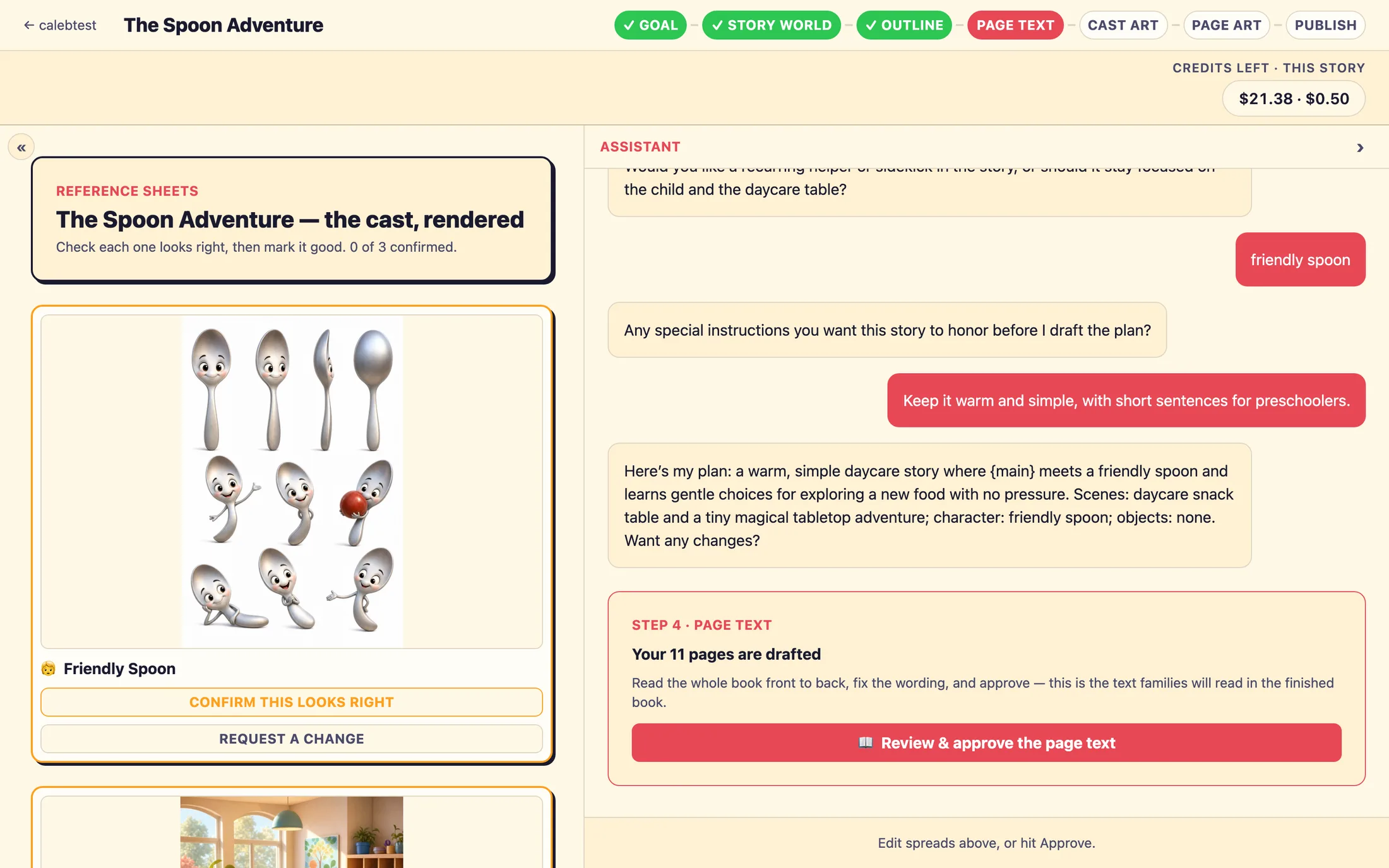
One more thing happens before the review opens: the studio finishes drawing your cast, places, and props, the child stand-in included, so the staging canvas on the left of each page shows real art from the first spread. A line above the button counts them off (3 of 6 ready), and the 📖 Review & approve the page text button wakes up when the last one lands. If a sheet fails to draw you'll see … didn't draw with a Retry link, plus a quieter Read the words without the art link if you'd rather review the words now and let the art be fixed later.
When the draft is ready, the dock shows a card titled Your 11 pages are drafted with a button: 📖 Review & approve the page text. Click it to open the full-screen reader.
Reading page by page
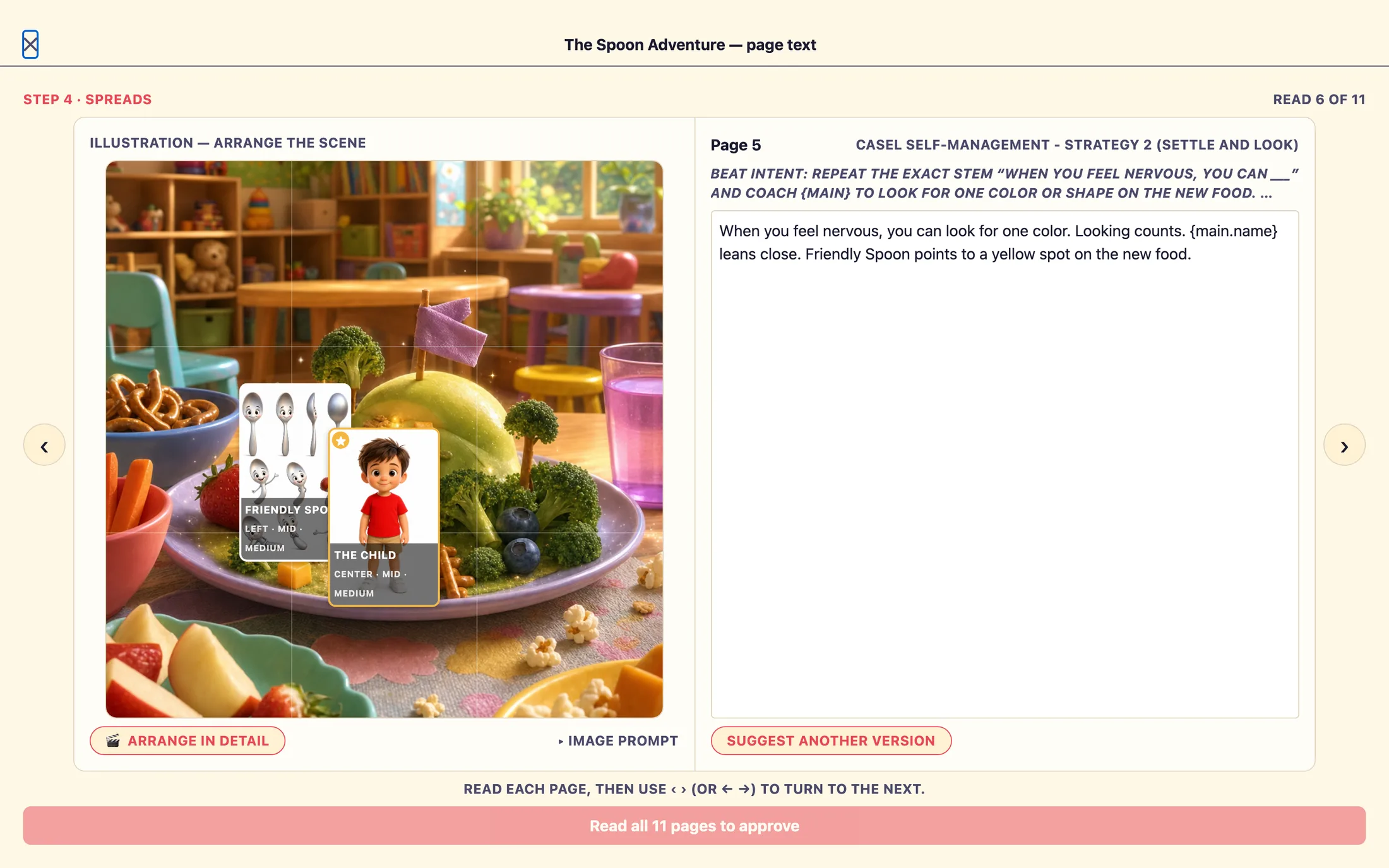
The reader opens full-screen, laid out like an open book. You see one page at a time, with round arrow buttons ‹ › on either side to turn to the next. On a computer you can also use the left and right arrow keys, except while you're typing in a text box, so your cursor stays put.
Each spread has two halves. On the left is the illustration side, a staging canvas showing your cast placed on the scene, with a 🎬 Arrange in detail button that opens the full scene composer (see below). You can leave this as-is for now; the art itself comes in a later step, and anything you arrange here is remembered for it. On the right is what matters most here: the words for that page. The right side shows a Cover or Page N label, a short italic reminder that starts with Beat intent:, and an editable text box holding the drafted words.
Editing the words
To change the wording, just tap into the text box on the right and type. Your edits save automatically as you go, and they survive a reload, nothing is lost if you step away. Read every page as your families will, and fix anything that feels stiff, unclear, or off-tone. You know how a story should sound for your children.
Arranging the scene (optional)
Tap 🎬 Arrange in detail on the illustration side and the scene composer opens over the reader. It's the same composer you'll meet again when the page art exists, so nothing you learn here is wasted. Drag anyone on the canvas to place them; pull a corner handle to make them bigger or smaller. The panel on the right has three tabs in this order: + Add, Page, and Selected. Tap a figure to select them and the panel switches to the third tab, now labelled with that figure's name, where you can set their size and distance, which way they face, how they're framed, where they look, a pose, an expression, and how they relate to someone or something else on the page. Between people the verbs are looks at, points to, faces, waves at, reaches toward, kneels beside, turns away from, holds hands with, hugs, and high-fives; toward a prop they are holds, carries, rides, and reads, or describe it in your own words.
The Page tab holds the whole-picture choices: camera shot and angle, the light, the weather, where the words will sit (the Words chips: anywhere, top, bottom, left, right), and a ⧉ Copy page N's arrangement shortcut when a scene continues from the page before. The + Add tab is who's on the page, every character, setting, and prop from your story world, ticked on or off. The child is always on; that tile can't be unticked. Anything that doesn't have reference art yet shows a pill reading no art yet, the render will improvise this one.
Every change saves on its own the moment you make it, the header reads Saving… and then Saved ✓; there's no save button, and ↶ / ↷ (or ⌘Z / ⇧⌘Z) undo and redo. The ⓘ render hears toggle shows a plain-words strip along the bottom of exactly what the studio will draw from: who is where, how big, who's looking at whom, the camera, the light. If the strip reads right, the picture will follow it. Close with ✕ when you're done and carry on with the words.
Asking for a different version
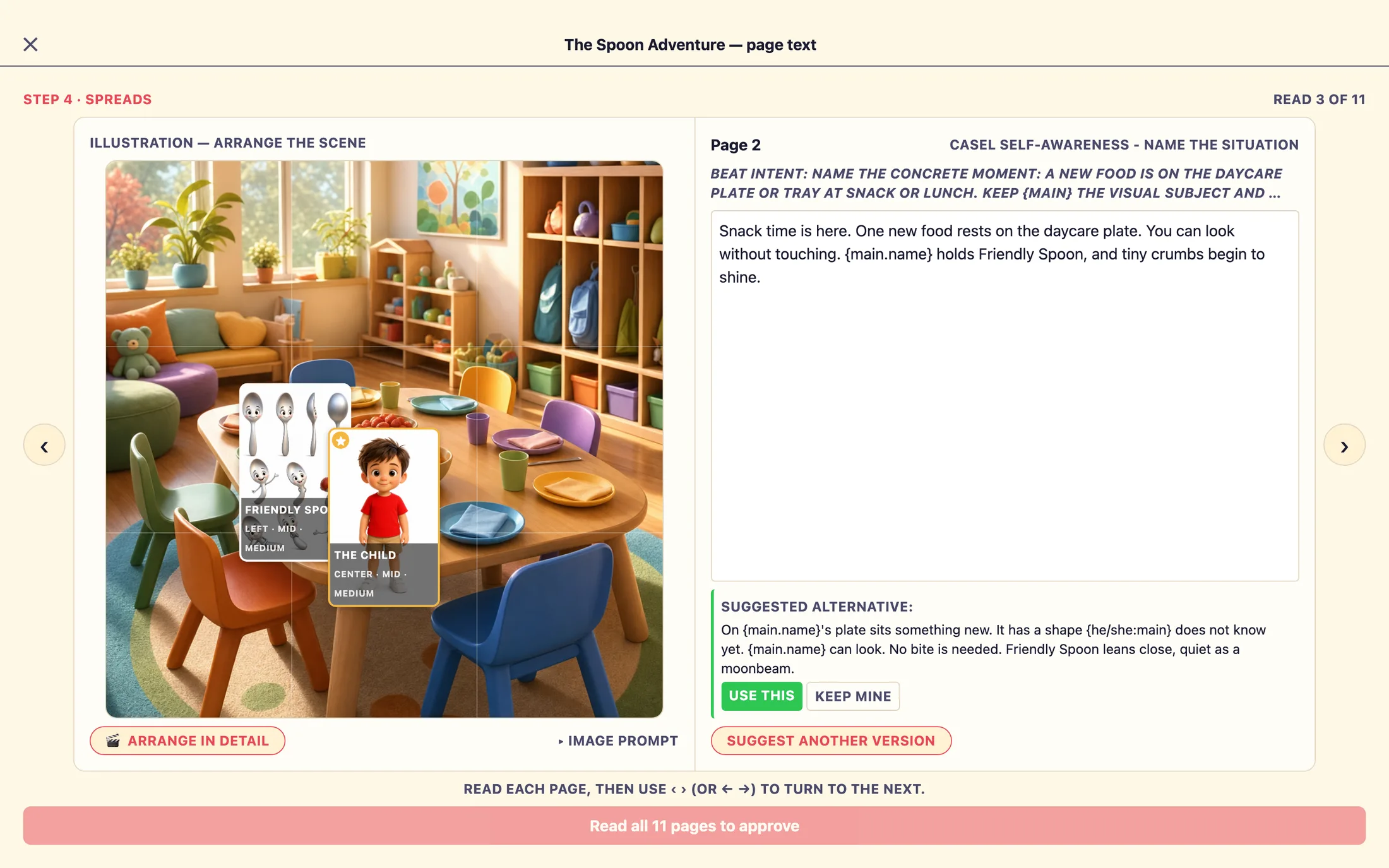
If a page's wording isn't working and you'd rather not rewrite it from scratch, use the Suggest another version button under the text. After a short spinner, a green-edged box appears labeled Suggested alternative: with the proposed wording and two buttons:
Use this, swaps the suggestion in as the new page text. You can still edit it afterward.Keep mine, dismisses the suggestion and keeps what you already had.
You're always in control, nothing changes unless you choose Use this. If a suggestion doesn't come through, a short message appears under the button and you can simply try again.
You must read every page to approve
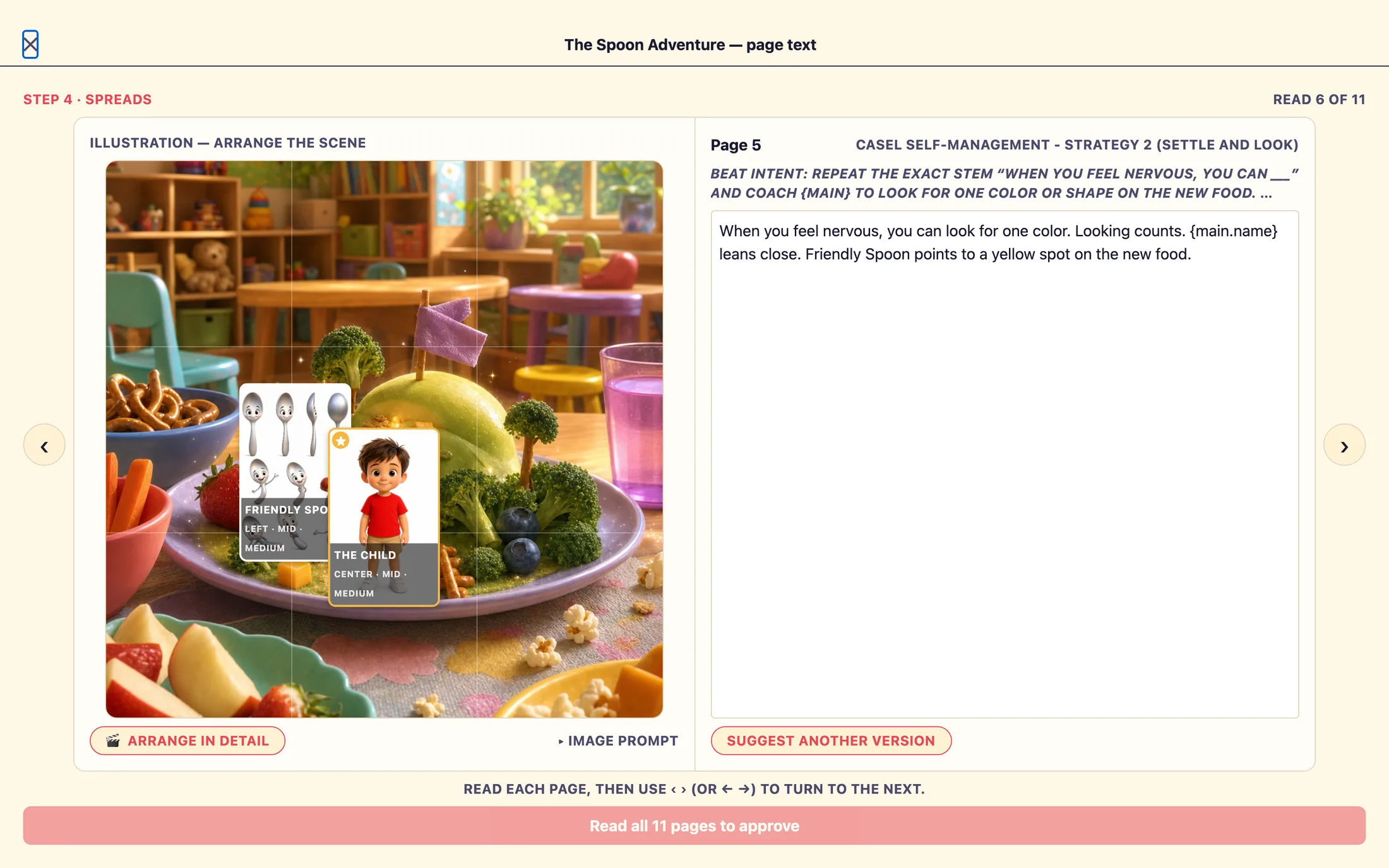
Look at the top corner of the reader for the read counter, it starts at something like Read 1 of 11 and climbs as you turn pages. Every page has to be viewed before you can approve. Until then, the approve button stays greyed out and reads Read all 11 pages to approve. Once you've turned through the whole book, the counter flips to ✓ All pages read and the button becomes Approve all spreads, continue.
This is on purpose. It's an easy step to skim, but the words you approve here are the words in every family's printed book, a cover and ten story pages. Reading each one is worth the couple of minutes.
Approving is final
When you're happy with the words and the counter shows ✓ All pages read, click Approve all spreads, continue. It briefly reads Saving…, then you move on to the next step, the Cast art step, where you'll review the reference art for your cast.
Still stuck? Email support@prestostories.com and we'll help.